

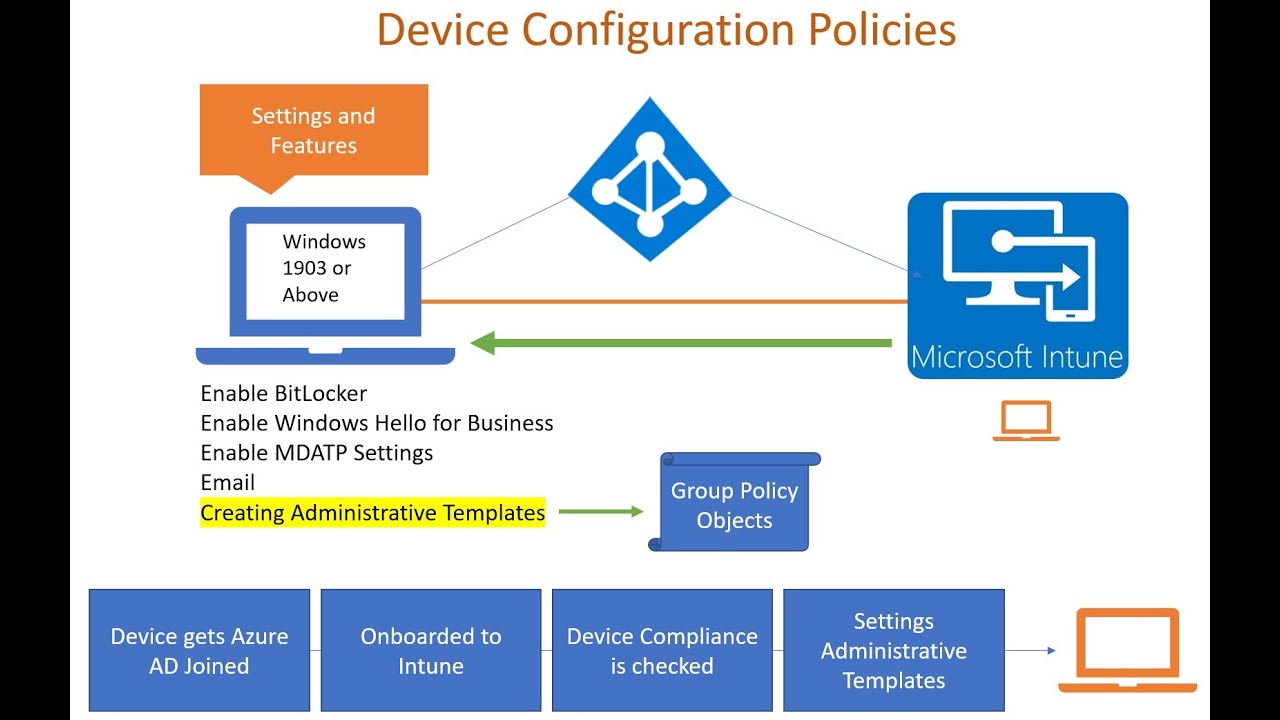

5 Intune Device Policies you should deploy on Day 1.
So you’ve deployed Microsoft Intune, enrolled some devices, and configured your first compliance policy — what next?
Before you roll it out to your entire org, make sure your core device policies are in place. These policies define your baseline configuration, improve the user experience, and close security gaps early.
Here are the 5 most essential device policies I recommend setting up on Day 1.
1. Configuration Profile: Device Restrictions
This is your Swiss Army knife for hardening the device.
Use this to:
- Block USB storage access
- Disable screen capture
- Restrict Cortana or built-in apps
- Prevent use of personal Microsoft accounts on work devices
intune.microsoft.com > Devices >Configuration> Create profile > Platform > Templates > Device restrictions (Navigate through as shown in the screenshot)

2. Configuration Profile: BitLocker Encryption Policy
You’ll want to enforce encryption on Windows devices using BitLocker.
This ensures that:
- Lost or stolen devices don’t leak data
- Devices are marked compliant (paired with compliance policy)
- You meet regulatory/security standards (HIPAA, GDPR, etc.)
✅ Be sure to store recovery keys securely in Azure AD. This is a must
Endpoint Security > Disk Encryption (Navigate through as shown in the screenshot below.

3. Windows Update: Update Rings
Control how Windows updates are installed — this avoids user disruption and ensures timely patching.
Set:
- Active hours (no forced restarts during business hours)
- Deadline for updates
- Grace period for reboot
Stability and security start here.
Devices > Windows Update (Navigate through as shown in the screenshot)

4. Configuration Profile: Wi-Fi and VPN Settings
If your devices connect to office networks or need secure access remotely:
- Preconfigure Wi-Fi credentials (SSID, security type, PSK or cert)
- Push VPN profiles to support remote work securely
- Avoid users manually entering sensitive network data
This improves both security and user onboarding experience.
(Navigate through as shown in the screenshot below)

5. Security Baselines: Microsoft-recommended Settings
Microsoft provides pre-configured security baselines for:
- Windows 10/11
- Microsoft Defender
- Microsoft Edge
These baselines are a fantastic starting point — they apply Microsoft’s own best practices across hundreds of settings.
(Navigate through as shown in the screenshot below)

You can customize them later, but they’re a great way to secure devices immediately.
Final Tips
🔹 Test all policies with a pilot group before applying org-wide
🔹 Review conflicting policies (especially when layering profiles)
🔹 Use naming conventions for easier tracking and auditing
🔹 Monitor policy deployment status under “Device status” and “Per-setting status”
These 5 policies create a strong foundation for every Intune environment.
By setting these up early, you’ll:
✅ Protect data
✅ Streamline the user experience
✅ Reduce IT firefighting down the line
