Close Menu
  • Home
  • Features
  • Microsoft 365
    • Word
    • Excel
    • Power point
    • Teams
    • Sharepoint
    • One Drive
    • outlook
    • Copilot
  • M365pros_security
    • Defender for M365
    • Defender for Endpoint
  • Intune Zone
  • Windows Server
What's Hot

COMPLETE ADMIN GUIDE How to Enable Multi-Factor Authentication (MFA) on Microsoft 365

April 6, 2026

MICROSOFT 365 ADMINISTRATION GUIDE How to Remove Licenses in Microsoft 365: A Complete Step-by-Step Guide

April 6, 2026

How to Create Users in Microsoft 365

April 4, 2026
Facebook Instagram
  • Download Free Chicklist
Facebook LinkedIn YouTube
Blog.m365pros.comBlog.m365pros.com
  • Home
  • Features
  • Microsoft 365
    • Word
    • Excel
    • Power point
    • Teams
    • Sharepoint
    • One Drive
    • outlook
    • Copilot
  • M365pros_security
    • Defender for M365
    • Defender for Endpoint
  • Intune Zone
  • Windows Server
Blog.m365pros.comBlog.m365pros.com
Home»Power point»Transform Your PowerPoint Bar Charts into Professional Masterpieces 2024
Power point

Transform Your PowerPoint Bar Charts into Professional Masterpieces 2024

Rhythem PradhanBy Rhythem PradhanMay 15, 2024Updated:October 15, 2024No Comments4 Mins Read
Share Facebook LinkedIn Email Copy Link
PowerPoint
Share
Facebook LinkedIn Email Copy Link

Transform Your PowerPoint Bar Charts into Professional Masterpieces 2024

Creating the perfect bar chart in PowerPoint bar chart can be daunting, but with the right steps, you can transform a standard chart into a visually appealing and professional presentation. In this guide, we’ll walk you through the process of revamping your bar chart to make your data stand out and Discover expert tips to elevate your PowerPoint bar chart from ordinary to extraordinary. Impress your audience with visually captivating data visualizations.

Step-by-Step Guide to Enhancing Your Bar Chart

Step 1: Start with the Standard Template 

      • Begin with PowerPoint’s standard bar chart  template. This provides a basic structure that we will enhance to make it more professional. 

    Step 2: Clean Up the Chart 

        • Delete unnecessary elements: 

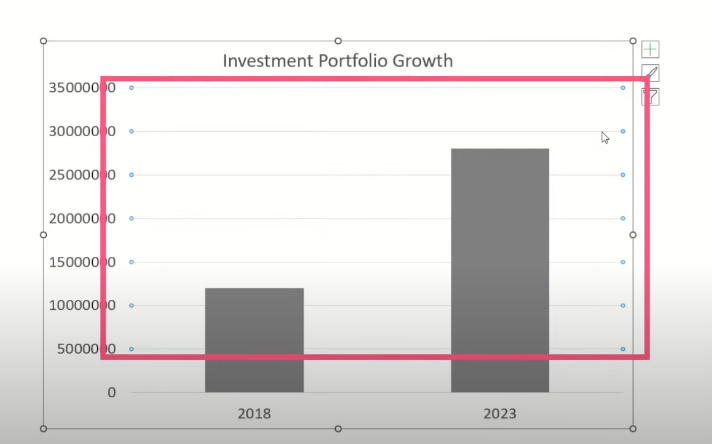
        • Remove horizontal grid lines to reduce clutter.
      Picture1

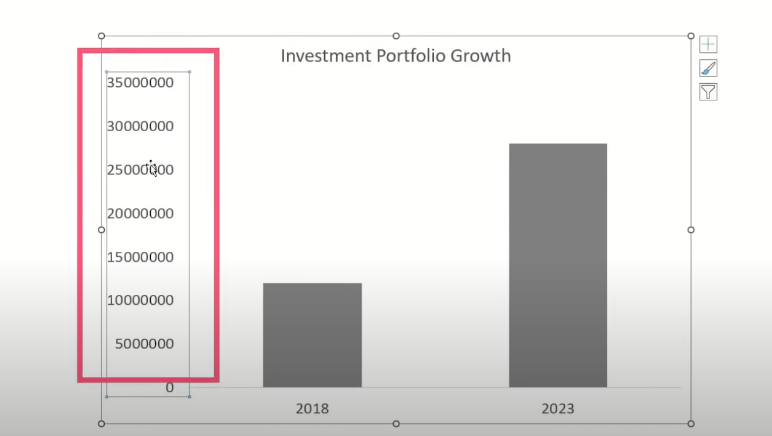
          • Delete vertical axis numbers for a cleaner look.
        Picture2

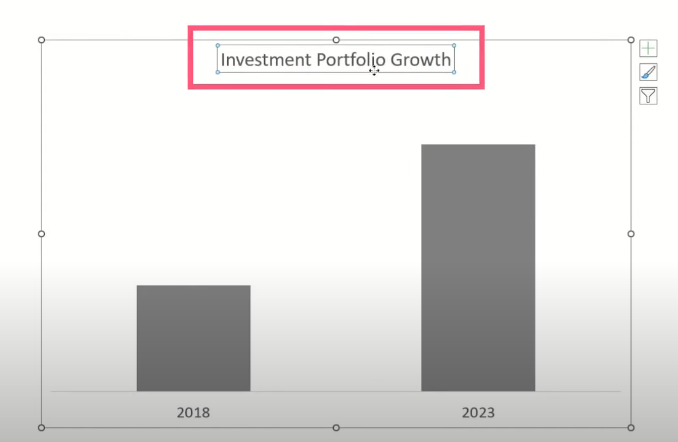
            • Get rid of the default chart title to make room for a customized one.
          Picture3

          Step 3: Add and Format Data Labels

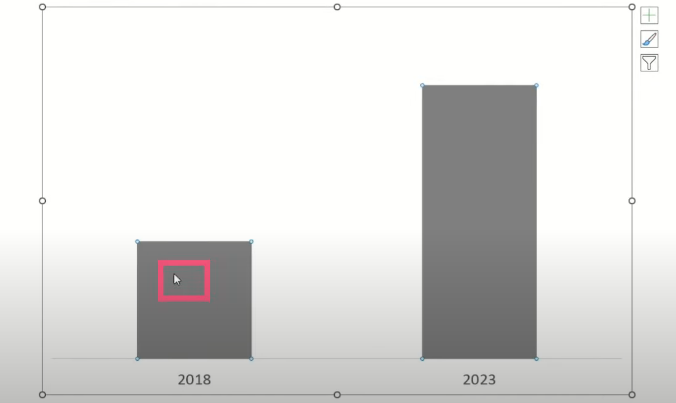
              • Click on the bars to select them.

            Picture4

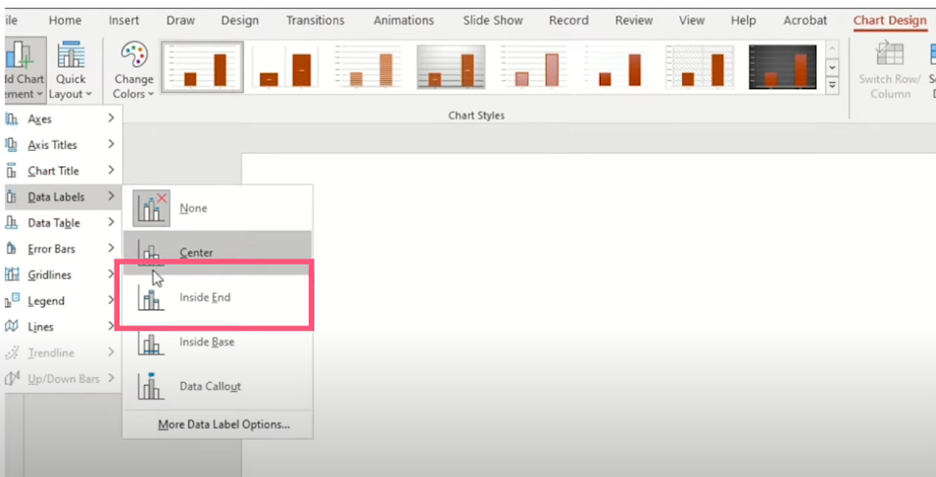
                • Navigate to Chart Design > Add Chart Element > Data Labels > Inside End.
              Picture5

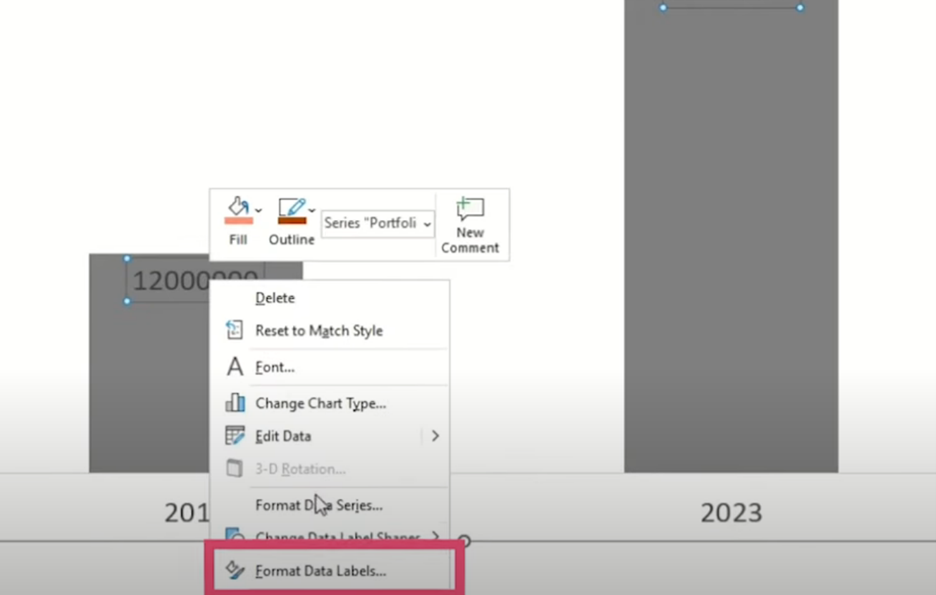
                  • Right-click on the data labels and choose Format Data Labels.
                Picture6

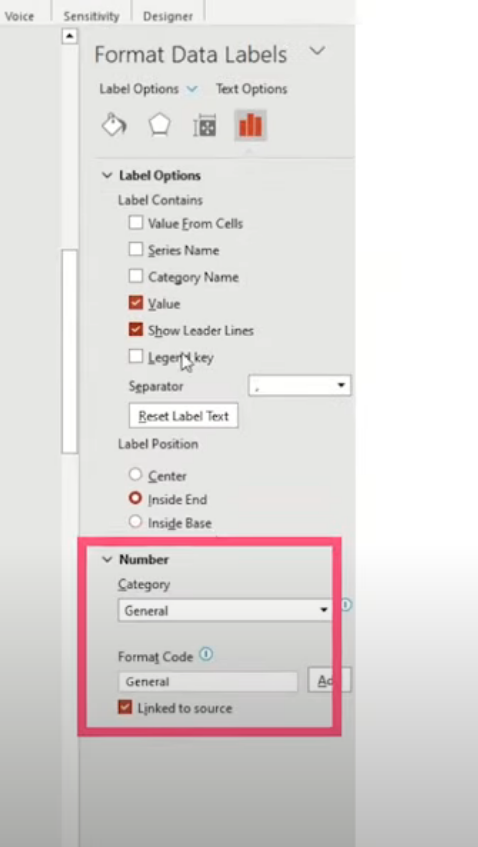
                    • In the format menu, select Number from the drop-down.
                  Picture7

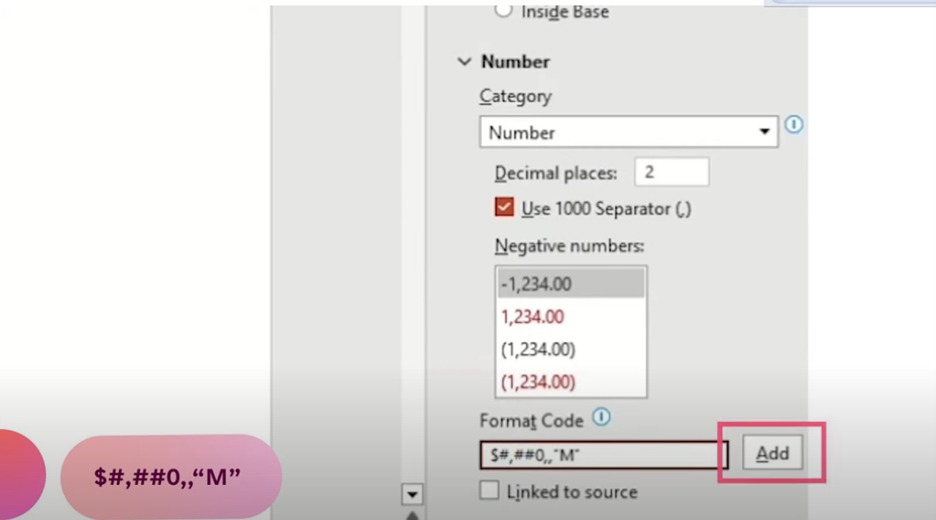
                      • Add a dollar sign before the number, remove decimal points and zeros, and append “,,”M”” to format the numbers in millions.
                    Picture8

                    Step 4: Customize Fonts and Colors

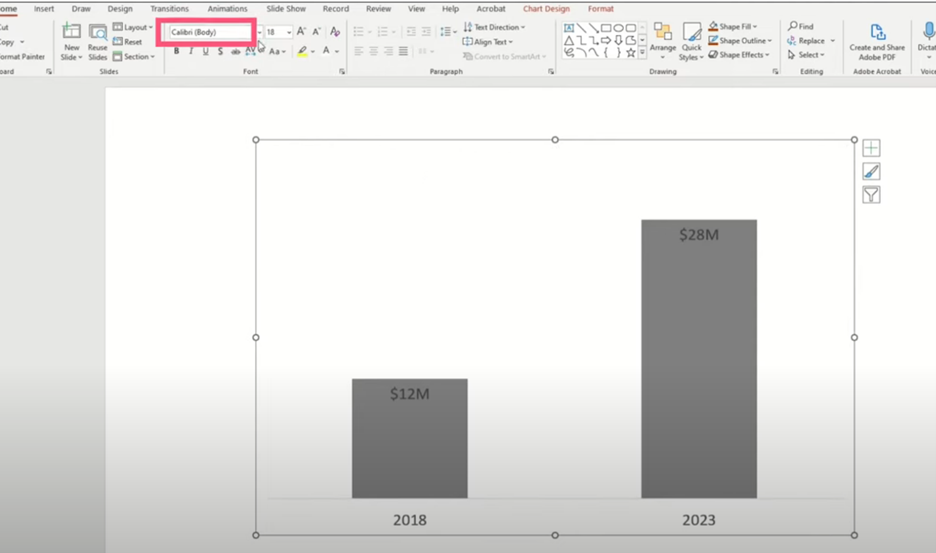
                        • Change the font of the entire bar chart to ensure consistency.
                      Picture9

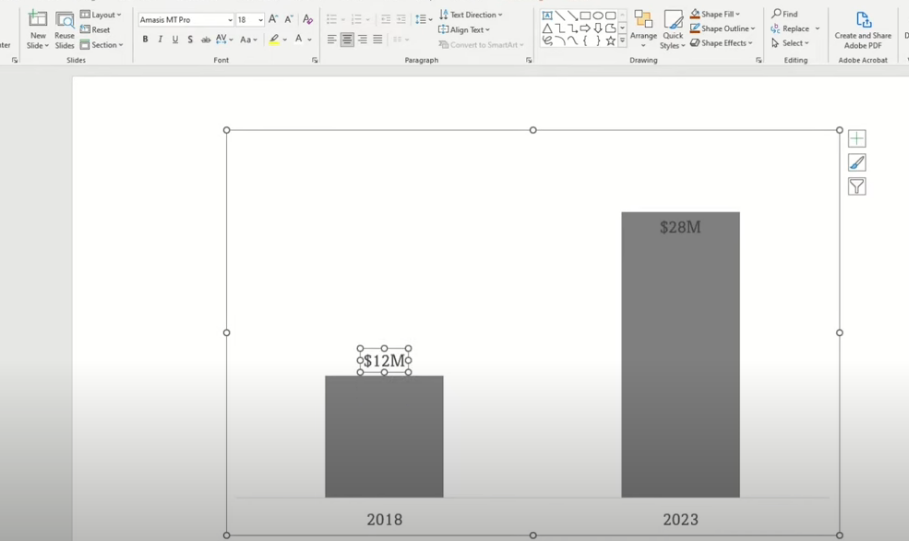
                          • Move the $12 million data label to the outside top of the bar.
                        Picture10

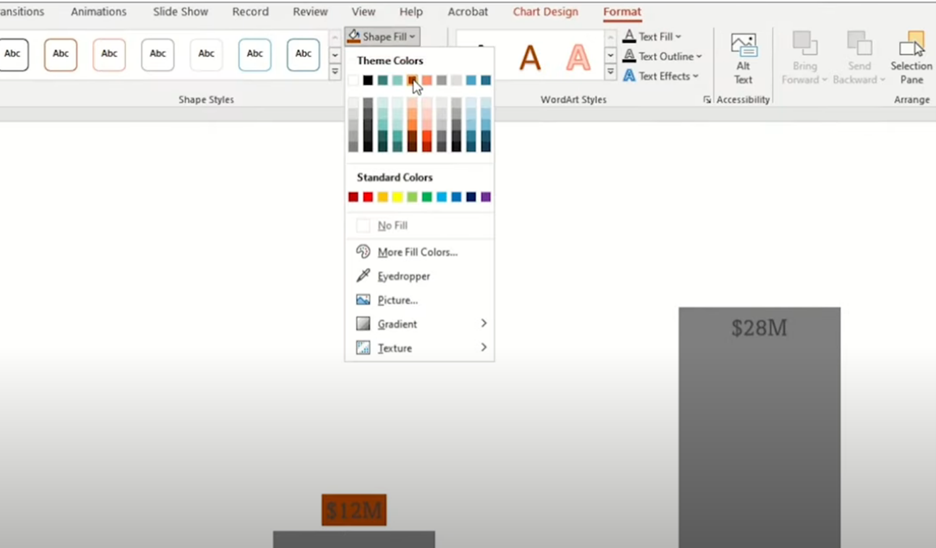
                            • Select the label, go to Format > Shape Fill, and choose a burnt orange color.
                          Picture11 1

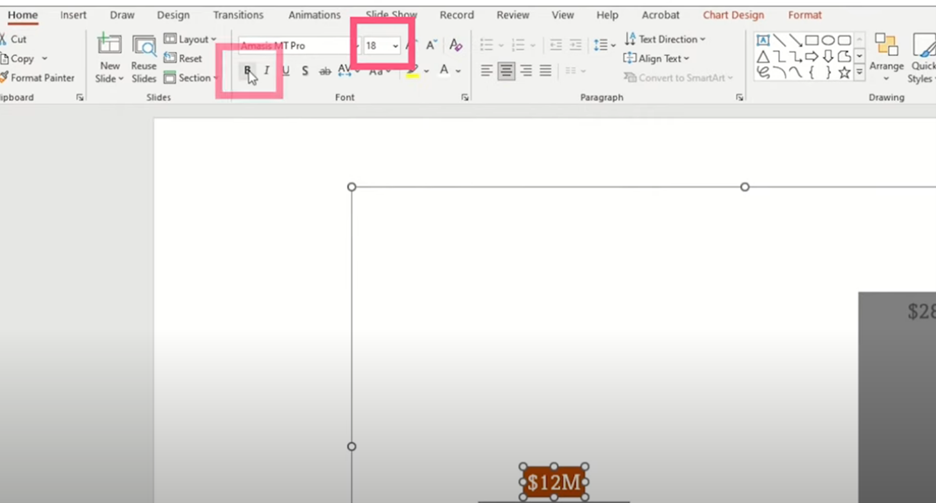
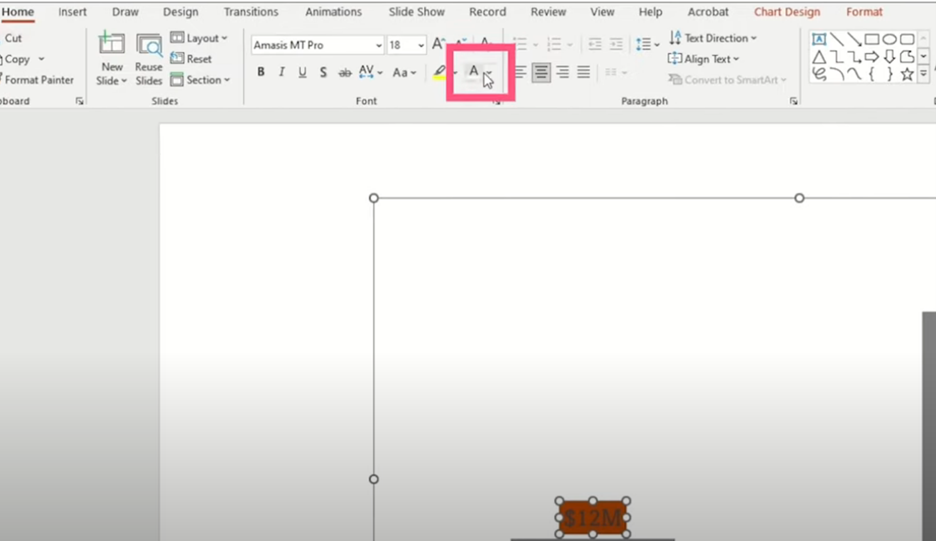
                              • Change the text color to white, then enlarge and bold the text.
                            Picture12 1

                            Picture13 1

                            Step 5: Outline the Bars

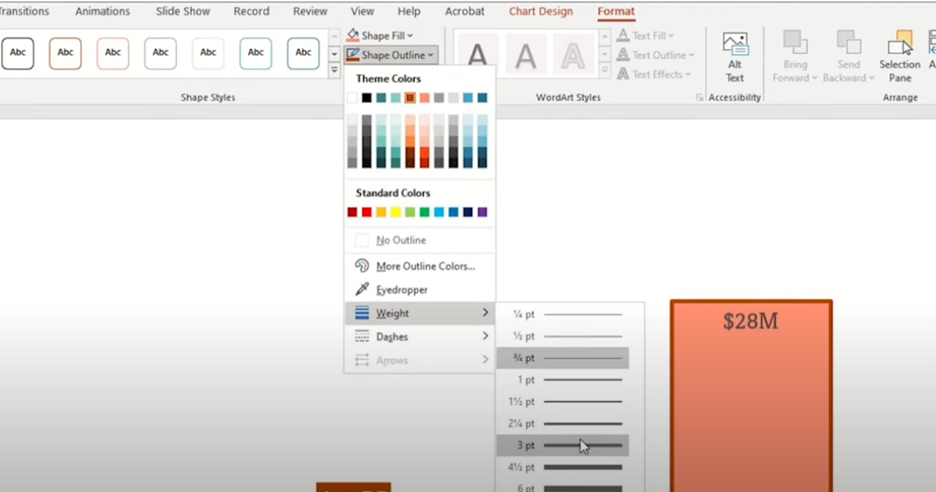
                                • Customize the bar outlines to add contrast. Select the bar, go to Format > Shape Fill and set the fill color to peach.

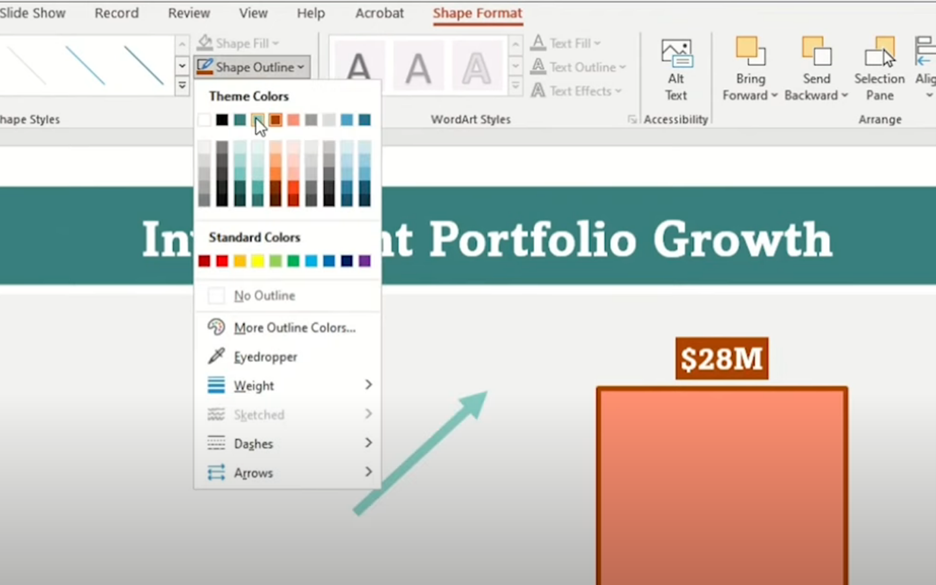
                                  • Then, set the Shape Outline to burnt orange and adjust the outline weight to 3 points.
                                Picture14 1

                                Step 6: Customize the $28 Million Bar

                                    • Apply the same updates to the $28 million bar for consistency.

                                  Step 7: Enhance the Axis

                                      • Double-click on the axis to open the formatting options.
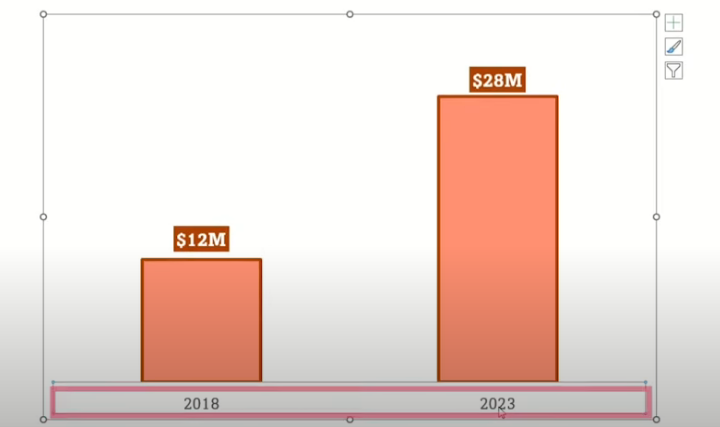
                                    Picture15 1

                                        • Under Paint Carton, select Line and choose Solid Line.
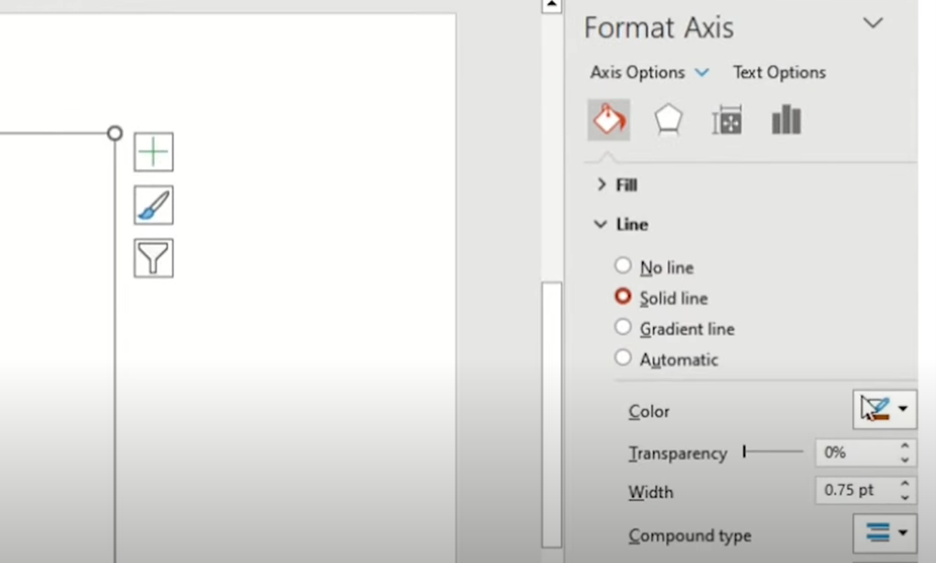
                                      Picture16 1

                                          • Change the line color to black and set the width to 1.5 points.
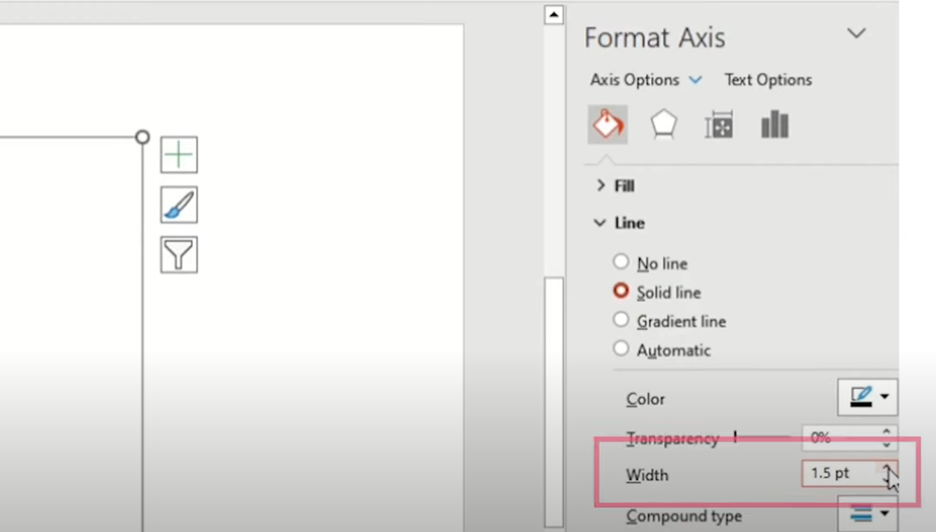
                                        Picture17 1

                                            • Increase the horizontal axis font size and change its color to black for better readability.

                                          Step 8: Adjust Bar Width

                                              • To make the bars wider, adjust the gap width to 90. This provides a bolder look.
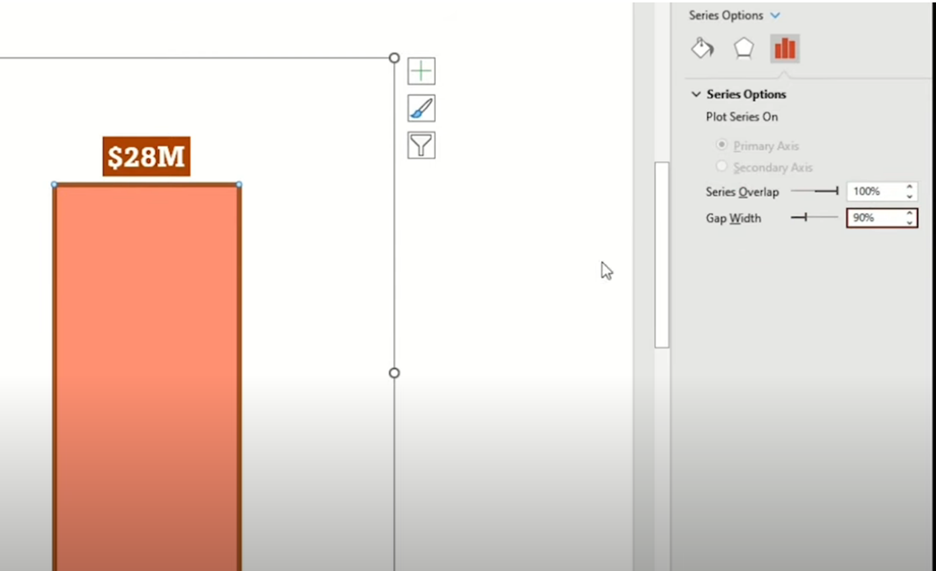
                                            Picture18 1

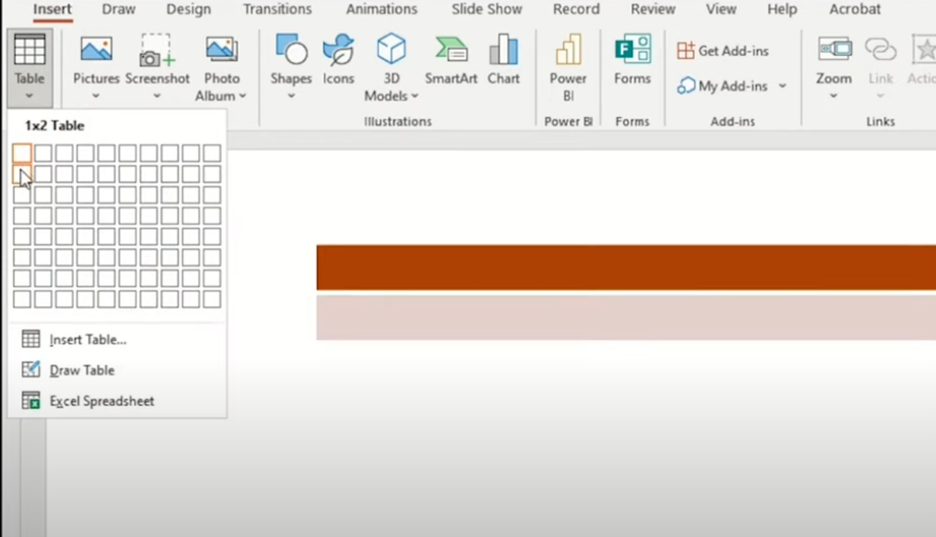
                                            Step 9: Add Dimension with a Table

                                                • Insert a one-by-two table to add some dimension behind the bar chart.
                                              Picture19 1

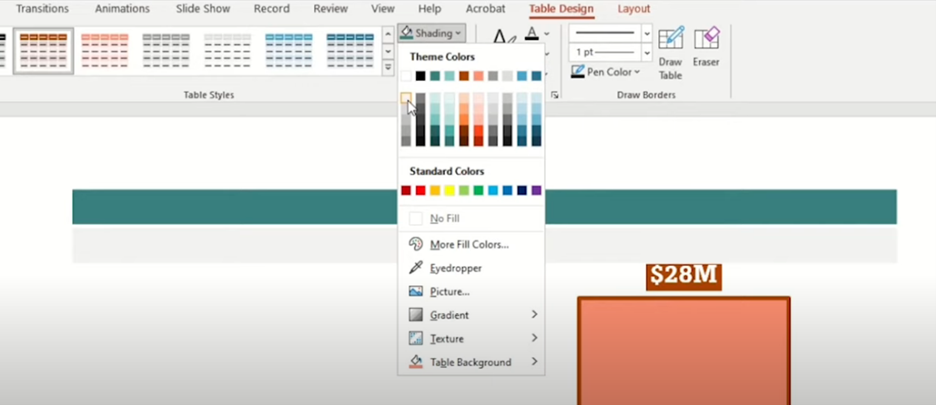
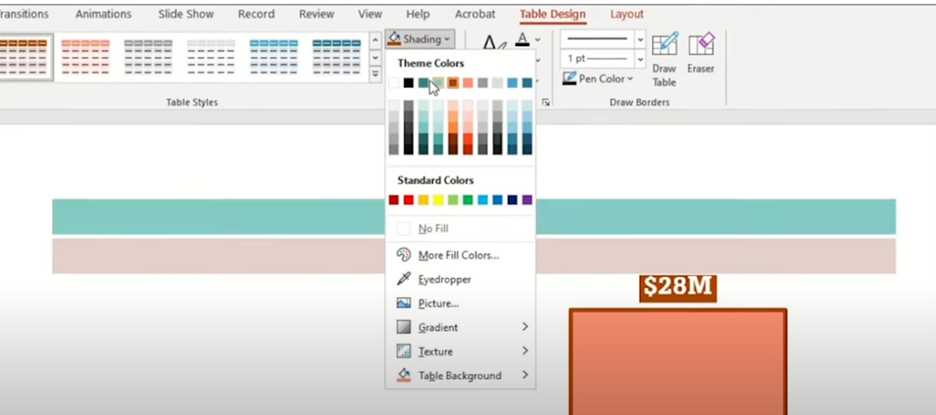
                                                  • Change the top box to a dark teal color and the bottom box to light gray.
                                                Picture20

                                                Picture21

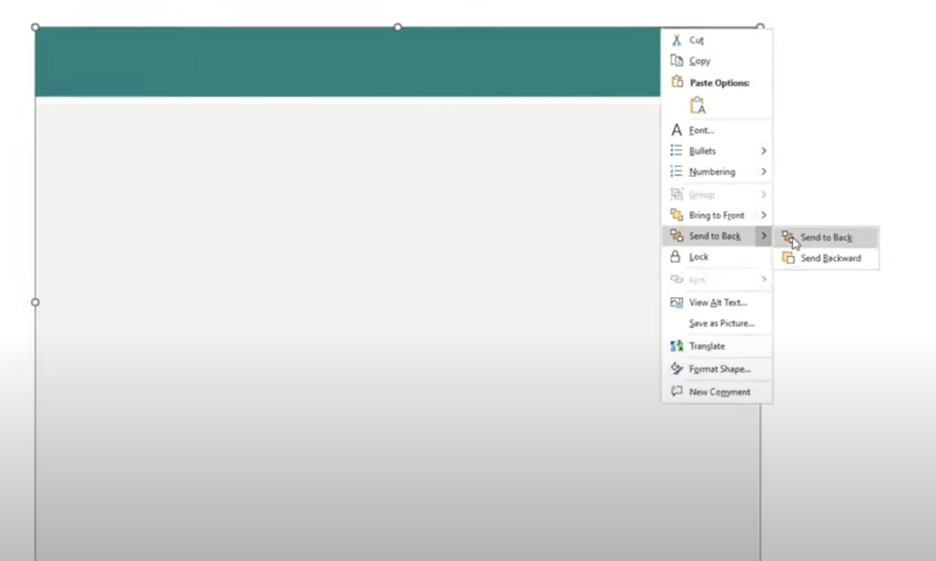
                                                    • Adjust the size of the table to fit behind the chart and send it to the back.
                                                  Picture22

                                                  Step 10: Insert and Customize an Arrow

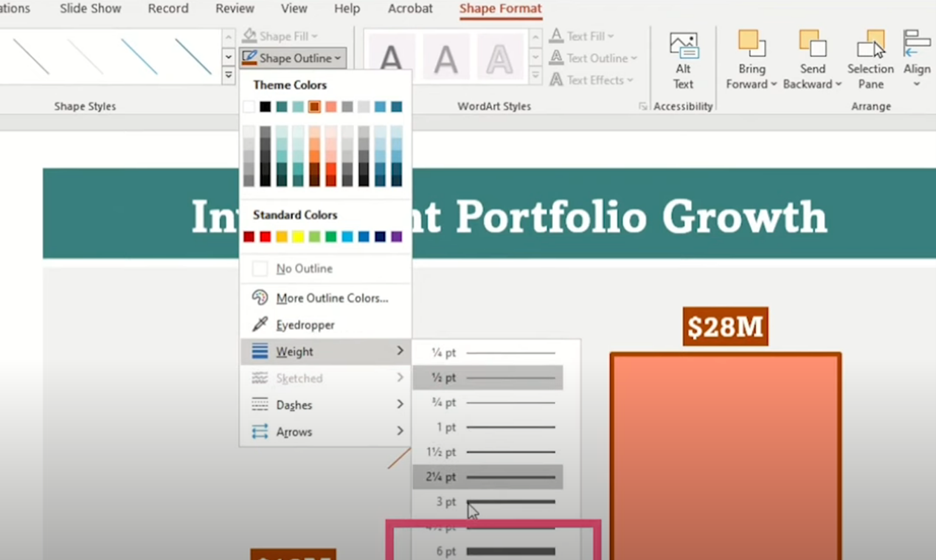
                                                      • Go to Insert > Shapes > Arrow.

                                                        • Under Shape Format, set the arrow’s width to 6 points and change its color to light teal.
                                                      Picture23

                                                      Picture24

                                                      Step 11: Add a Highlighting Circle

                                                          • Insert a circle by going to Insert > Shapes > Circle.

                                                          • Change the circle color to dark teal and place it appropriately on the chart.

                                                          • Inside the circle, add the compound annual growth rate (CAGR) metric, which adds a valuable data point.
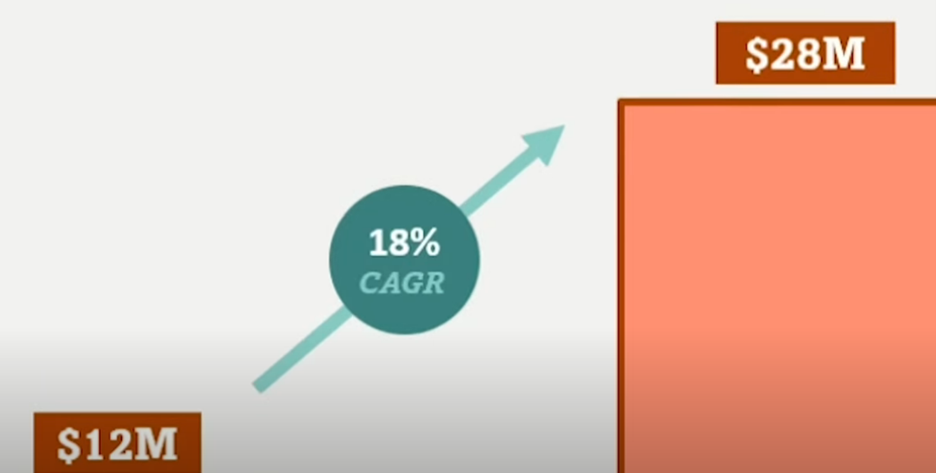
                                                        Picture25

                                                        Conclusion

                                                        By following these steps, you can transform a basic PowerPoint bar chart into a polished and professional visual that clearly communicates your data. This revamped bar chart not only looks great but also effectively highlights key metrics, making your presentations more impactful and engaging.

                                                        There you have it—a revamped bar chart that showcases your data in style. With these techniques, you can create compelling and professional visuals that impress your audience and clearly convey your message. Happy charting! Discover expert tips to elevate your PowerPoint bar chart from ordinary to extraordinary. Impress your audience with visually captivating data visualizations. 

                                                        click 

                                                        culture gadgets phones technology
                                                        Previous ArticleHow to Get help or support as an end user while using Microsoft 365 App
                                                        Next Article The Overlooked Importance of Security in Feature-Rich Business Environments
                                                        Rhythem Pradhan
                                                        • Website

                                                        Related Posts

                                                        administrative assistant

                                                        COMPLETE ADMIN GUIDE How to Enable Multi-Factor Authentication (MFA) on Microsoft 365

                                                        April 6, 2026
                                                        administrative assistant

                                                        MICROSOFT 365 ADMINISTRATION GUIDE How to Remove Licenses in Microsoft 365: A Complete Step-by-Step Guide

                                                        April 6, 2026
                                                        administrative assistant

                                                        How to Create Users in Microsoft 365

                                                        April 4, 2026
                                                        Add A Comment

                                                        Leave A Reply Cancel Reply

                                                        Recent Posts

                                                        • COMPLETE ADMIN GUIDE How to Enable Multi-Factor Authentication (MFA) on Microsoft 365
                                                        • MICROSOFT 365 ADMINISTRATION GUIDE How to Remove Licenses in Microsoft 365: A Complete Step-by-Step Guide
                                                        • How to Create Users in Microsoft 365
                                                        • Deploy the LOLBINS (Living Off The Land Binary Attacks) prevention-focused ASR rules via custom configuration profile (OMA-URI) in Intune
                                                        • Elevating CEH: Transforming a Single Curriculum into Beginner, Intermediate, Advanced, and Expert-Level Cybersecurity Training

                                                        Recent Comments

                                                        1. Blog.m365pros.com on Perfect Your Prompt with Microsoft 365 Copilot: Unleash Your Productivity
                                                        2. Blog.m365pros.com on Perfect Your Prompt with Microsoft 365 Copilot: Unleash Your Productivity
                                                        3. สล็อตเว็บตรง on Perfect Your Prompt with Microsoft 365 Copilot: Unleash Your Productivity
                                                        4. สล็อต on Perfect Your Prompt with Microsoft 365 Copilot: Unleash Your Productivity
                                                        5. stashpatrick cc on The Intune Device Lifecycle: From Onboarding to Retirement (Best Practices)
                                                        zencere.com
                                                        zencere.com
                                                        Top Posts

                                                        M365 ERROR CODE 80192EE7 Solution 

                                                        April 30, 2024152 Views

                                                        How to Get help or support as an end user while using Microsoft 365 App

                                                        May 1, 202483 Views

                                                        Managing Windows Updates with Intune: Best Practices with Update Rings

                                                        June 3, 202548 Views
                                                        Latest Reviews
                                                        hotwiretellecom.com
                                                        hotwiretellecom.com

                                                        Archives

                                                        • April 2026
                                                        • March 2026
                                                        • July 2025
                                                        • June 2025
                                                        • December 2024
                                                        • November 2024
                                                        • October 2024
                                                        • September 2024
                                                        • July 2024
                                                        • June 2024
                                                        • May 2024
                                                        • April 2024
                                                        Most Popular

                                                        M365 ERROR CODE 80192EE7 Solution 

                                                        April 30, 2024152 Views

                                                        How to Get help or support as an end user while using Microsoft 365 App

                                                        May 1, 202483 Views

                                                        Managing Windows Updates with Intune: Best Practices with Update Rings

                                                        June 3, 202548 Views
                                                        People's Favorite

                                                        COMPLETE ADMIN GUIDE How to Enable Multi-Factor Authentication (MFA) on Microsoft 365

                                                        April 6, 2026

                                                        MICROSOFT 365 ADMINISTRATION GUIDE How to Remove Licenses in Microsoft 365: A Complete Step-by-Step Guide

                                                        April 6, 2026

                                                        How to Create Users in Microsoft 365

                                                        April 4, 2026
                                                        © 2026 blog.m365pros.com. Designed by blog.m365pros.com
                                                        • Home
                                                        • Microsoft 365
                                                        • Teams
                                                        • One Drive
                                                        • Windows Server
                                                        • outlook

                                                        Type above and press Enter to search. Press Esc to cancel.