

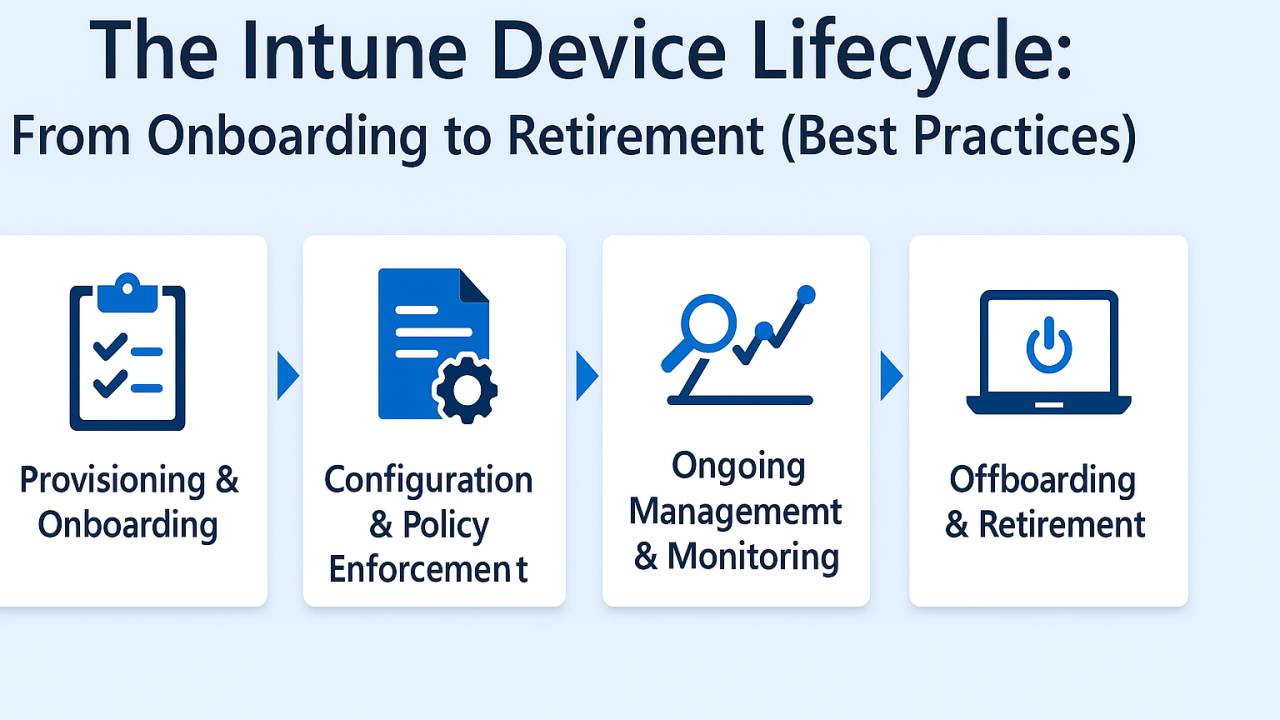
Managing endpoints isn’t just about deployment, it’s about handling the entire device lifecycle: from onboarding and day-to-day management to secure deprovisioning when a device is no longer in use.
Microsoft Intune provides a streamlined, policy-driven approach to each phase of this lifecycle, and when done right, it reduces IT overhead, increases security, and improves the user experience.
In this post, I’ll walk you through the key stages of managing a device in Intune from start to finish, and how to handle each one effectively.
Stage 1: Provisioning & Onboarding
This is where the device journey begins, and it sets the tone for everything that follows.
Tools and features to use:
- Windows Autopilot for zero-touch setup
- Enrollment Status Page (ESP) to control setup sequence
- Dynamic groups to assign configurations automatically
- Baseline security policies (compliance, Defender, encryption)
Goal: Make the first experience smooth, secure, and consistent for every user.
Stage 2: Configuration & Policy Enforcement
Once enrolled, devices need policies to enforce security, productivity, and compliance.
Key items to configure:
- Device compliance policies
- Configuration profiles (Wi-Fi, email, certificates, restrictions)
- App deployment (Microsoft 365, third-party apps, custom LOB apps)
- Endpoint protection (Defender Antivirus, firewall, attack surface reduction)
Goal: Keep devices productive and protected’ with minimal hands-on admin effort.
Stage 3: Ongoing Management & Monitoring
Keeping endpoints healthy over time requires visibility and automation.
What to focus on:
- Endpoint Analytics for performance insights
- Update Rings for structured Windows patching
- Conditional Access to protect corporate resources
- Intune Reports for compliance and policy tracking
- Remote actions (restart, wipe, lock, sync) when needed
Goal: Minimize support tickets by being proactive, not reactive.
Stage 4: Offboarding & Retirement
Eventually, devices are removed from service due to refresh, loss, or employee exit.
Secure offboarding steps:
- Use “Wipe” or “Retire” from Intune portal
- Remove from Autopilot if reassigning or repurposing
- Revoke user access via Entra ID (if applicable)
- Review logs for audit trail
Goal: Ensure data is wiped, access is revoked, and devices are properly decommissioned.
Best Practices for Lifecycle Management in Intune
- Use naming conventions for easy device tracking
- Tag devices with Group Tags for automated profile assignments
- Schedule regular compliance reviews
- Enable automatic enrollment and re-enrollment where supported
- Keep Autopilot and Intune inventory clean and current
Device management doesn’t stop at enrollment.
By using Intune to manage the full lifecycle, you gain tighter control over your environment, reduce manual work, and improve the experience for users, from first login to final shutdown.
