

Instead of Per-User MFA (Recommended)
Complete Step-by-Step Guide for Microsoft 365 Admins
1. Introduction
If you manage a Microsoft 365 environment, securing user sign-ins is one of your top priorities. Traditionally, many admins enabled Multi-Factor Authentication (MFA) on a per-user basis — turning it on one account at a time. While this works, it is not the recommended approach anymore. Microsoft now strongly recommends using Conditional Access (CA) policies to enforce MFA in a smarter, more flexible way.
Conditional Access policies let you apply MFA only when needed — based on who the user is, what app they are accessing, where they are signing in from, or how risky the sign-in looks. This means less friction for trusted users, better security for risky situations, and centralized control for administrators.
Real-world example: Imagine a new employee, Sarah, joins your company. With per-user MFA, every single sign-in — even from her work laptop on the corporate network — would prompt for MFA. With Conditional Access, you can configure MFA only when she signs in from an unfamiliar location or from a personal device, reducing unnecessary prompts while keeping security tight.
| 🎯 Key Takeaway Conditional Access policies are the modern, Zero Trust-aligned standard for MFA enforcement in Microsoft 365. Per-user MFA is a legacy approach that should be phased out. |
2. Per-User MFA vs. Conditional Access: What Is the Difference?
Before diving into configuration steps, it is important to understand why Microsoft recommends Conditional Access over per-user MFA. The table below highlights the key differences:
| Feature | Per-User MFA | Conditional Access MFA |
| MFA Trigger | Every single sign-in | Only when conditions are met |
| Flexibility | None — all or nothing | Granular — user, app, location, risk |
| Exclusions | Not possible per-policy | Easily exclude break-glass accounts |
| Management Scale | Hard to manage at scale | Centrally managed policies |
| Microsoft Recommendation | Legacy approach | Modern, recommended approach |
| License Required | Free (included) | Azure AD P1 or higher |
| Report-Only Mode | Not available | Available for safe testing |
As you can see, Conditional Access gives you much more control. It is smarter, safer, and easier to manage — especially as your organization grows.
3. Prerequisites
Before you can create or manage Conditional Access policies, make sure the following requirements are in place:
Required Admin Roles
- Global Administrator — full access to all settings
- Conditional Access Administrator — can create and manage CA policies
- Security Administrator — can read and manage security configurations
License Requirements
- Azure AD P1 license (included in Microsoft 365 Business Premium, E3, and above)
- Azure AD P2 required for risk-based Conditional Access (sign-in risk, user risk)
Other Requirements
- An active Microsoft 365 tenant with users already created
- MFA registration must be completed by users (or enforced via a separate registration policy)
- Break-glass / emergency access accounts identified and ready to be excluded
| ⚠️ Important If you are currently using per-user MFA, do NOT disable it until your Conditional Access policy is live and tested. Turning off per-user MFA first could leave accounts unprotected. |
4. How Conditional Access Works
Think of a Conditional Access policy as an if-then rule. If certain conditions are met, then apply certain access controls. Here is the basic structure:
| Component | Description | Example |
| Assignments — Users | Who the policy applies to | All users, or a specific group |
| Assignments — Target Apps | Which apps are covered | All cloud apps, or just Exchange |
| Conditions | When the policy triggers | Outside corporate network, risky sign-in |
| Access Controls — Grant | What to require | Require MFA, or require compliant device |
| Enable Policy | Policy state | On, Off, or Report-only |
5. Step-by-Step: Create a Conditional Access MFA Policy
Follow these steps carefully to create your first Conditional Access policy that enforces MFA for all users.
Step 1 — Open the Microsoft Entra Admin Center
- Open a browser and go to: https://entra.microsoft.com
- Sign in with a Global Administrator or Conditional Access Administrator account.
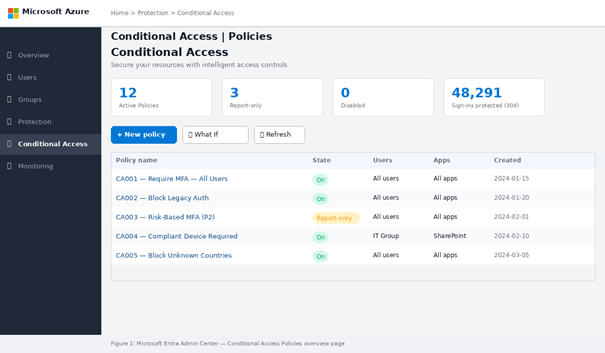
- In the left navigation menu, expand Protection, then click Conditional Access.
- You will land on the Conditional Access overview page.
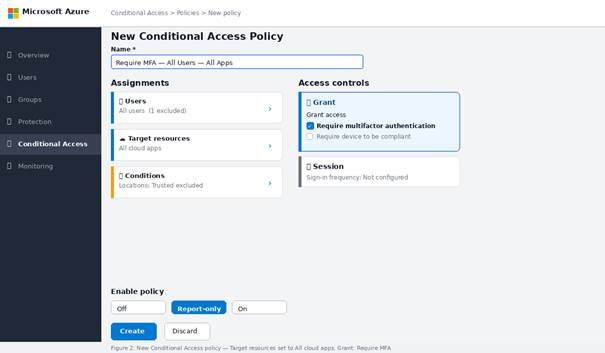
Step 2 — Start a New Policy
- Click + New policy at the top of the page.
- Give your policy a clear name. Example: “Require MFA — All Users — All Apps”.
| 💡 Tip Use a consistent naming convention for your CA policies, such as: “CA001 — Require MFA — All Users” or “CA-MFA-AllApps”. This keeps your policy list organized as it grows. |
Step 3 — Configure Assignments: Users
- Under Assignments, click Users.
- Select Include → All users.
- Click Exclude and add your break-glass / emergency access accounts. This is critical — never lock out your emergency accounts from MFA policies.
- You can also exclude service accounts or admin roles that cannot complete MFA interactively.
| 🔴 Critical Always exclude at least one break-glass account (or a dedicated exclusion group) from every CA policy. Failing to do so can completely lock you out of your tenant. |
Step 4 — Configure Target Resources
- Click Target resources (formerly Cloud apps).
- Select Include → All cloud apps.
- This ensures MFA is required for every Microsoft 365 service (Exchange, SharePoint, Teams, and more).
If you want to start smaller and test with a single app first (for example, just Exchange Online), select Select apps instead and search for the specific application.
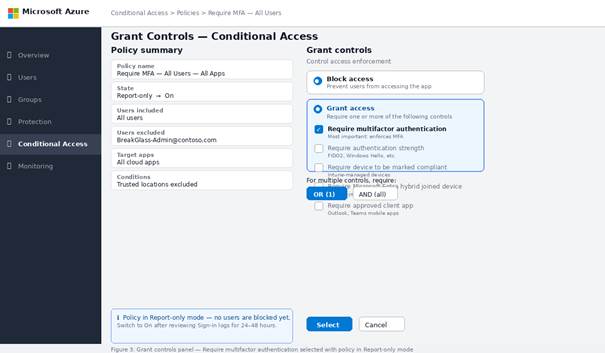
Step 5 — Configure Conditions (Optional but Recommended)
Conditions make your policy smarter. They are not required for a basic MFA policy, but adding them reduces user friction. Common conditions include:
- Locations: Exclude trusted named locations (your corporate IP range) so office users are not prompted for MFA every time.
- Sign-in risk: Require MFA only for medium or high-risk sign-ins (requires Azure AD P2).
- Device platforms: Apply MFA only to specific OS types (Windows, iOS, Android).
- Client apps: Include or exclude legacy authentication clients.
To set up Named Locations (recommended):
- Go to Conditional Access → Named locations → + IP ranges location.
- Enter your corporate IP address range (public IP of your office network).
- Mark it as Trusted location, then save.
Step 6 — Configure Grant Controls
- Under Access controls, click Grant.
- Select Grant access.
- Check the box for Require multifactor authentication.
- Optional: Also enable Require device to be marked as compliant if you want managed devices to skip MFA.
- Click Select to save the grant settings.
Step 7 — Enable in Report-Only Mode First
Before turning the policy fully on, Microsoft recommends using Report-only mode. This lets you see which users and sign-ins would have been affected, without actually blocking or enforcing anything.
- Set Enable policy to Report-only.
- Click Create to save the policy.
- Wait 24-48 hours and review the results in Sign-in logs (Entra ID → Monitoring → Sign-in logs).
- Look for any unexpected exclusions or users who might get locked out.
Step 8 — Switch to On and Disable Per-User MFA
Once you are confident the policy is configured correctly:
- Change Enable policy from Report-only to On.
- Click Save.
- Now disable per-user MFA to avoid duplicate enforcement:
- Go to Entra ID → Users → All Users → Per-user MFA.
- Select all users → click Disable.
| ✅ Done Your Conditional Access policy is now live. Users will be prompted for MFA based on the conditions you configured — no more per-user MFA juggling. |
6. Managing Conditional Access Policies with PowerShell
For admins who prefer scripting or need to automate policy creation across multiple tenants, Microsoft Graph PowerShell can be used to create and manage Conditional Access policies.
Install Required Module
| # Install Microsoft Graph PowerShell module |
| Install-Module Microsoft.Graph -Scope CurrentUser -Force |
| # Connect with required scopes |
| Connect-MgGraph -Scopes ‘Policy.ReadWrite.ConditionalAccess’, ‘Policy.Read.All’ |
Create a Basic MFA Policy via PowerShell
| # Define the Conditional Access policy body |
| $policyBody = @{ |
| displayName = “Require MFA – All Users – All Apps” |
| state = “enabledForReportingButNotEnforced” # Report-only mode |
| conditions = @{ |
| users = @{ |
| includeUsers = @(“All”) |
| excludeUsers = @(“<BreakGlassAccountObjectId>”) # Replace with actual ID |
| } |
| applications = @{ |
| includeApplications = @(“All”) |
| } |
| } |
| grantControls = @{ |
| operator = “OR” |
| builtInControls = @(“mfa”) |
| } |
| } |
| # Create the policy |
| New-MgIdentityConditionalAccessPolicy -BodyParameter $policyBody |
| # Verify creation |
| Get-MgIdentityConditionalAccessPolicy | Select-Object DisplayName, State |
7. Best Practices for Conditional Access MFA
Follow these best practices to build a robust, maintainable Conditional Access setup:
- Always maintain at least two break-glass accounts excluded from all CA policies and stored securely offline.
- Use Report-only mode for every new policy before switching it on. Never go live without testing.
- Create a dedicated CA exclusion group and add it to the Exclude section of every policy. Use this group for service accounts, break-glass accounts, and any automation identities.
- Use named locations to define trusted networks and reduce MFA prompts for on-site employees.
- Combine MFA with device compliance (Intune) for a complete Zero Trust approach — users on managed, compliant devices may not need an MFA challenge.
- Document every policy: name, purpose, scope, exclusions, and date created. Keep a change log.
- Review CA policies monthly — remove stale policies, update exclusion groups, and check sign-in logs for anomalies.
- For organizations with Azure AD P2, enable risk-based Conditional Access to trigger MFA only on medium/high-risk sign-ins.
8. Common Issues and Troubleshooting
| Issue | Cause | Fix |
| Users locked out after policy enabled | Break-glass account not excluded | Exclude emergency accounts before enabling |
| MFA not triggering | Policy in Report-only mode | Switch Enable policy to On |
| Admin cannot access Entra ID | Admin account covered by CA policy | Use break-glass account to adjust policy |
| Policy conflict / unexpected behavior | Multiple overlapping CA policies | Review all policies; use What If tool to simulate |
| Report-only shows no data | Not enough time elapsed | Wait 24-48 hours and check Sign-in logs |
| Per-user MFA still prompting | Per-user MFA not disabled after CA set up | Go to Per-user MFA settings and disable all users |
Use the What If tool: Located under Conditional Access → What If, this tool lets you simulate a sign-in scenario to see which policies would apply. It is invaluable for troubleshooting unexpected blocks or missing MFA challenges.
9. Conclusion
Migrating from per-user MFA to Conditional Access policies is one of the most impactful security improvements you can make in your Microsoft 365 environment. It gives you centralized control, reduces unnecessary MFA friction for trusted users, and aligns your organization with Microsoft’s modern Zero Trust security model.
By following the steps in this guide — planning your exclusions, using Report-only mode, configuring named locations, and then going live — you can make the transition safely without disrupting your users.
As your organization matures, consider layering in risk-based CA policies (with Azure AD P2), device compliance requirements via Intune, and phishing-resistant MFA methods such as FIDO2 security keys or Windows Hello for Business for even stronger protection.
| 🚀 Next Steps After completing this setup, consider exploring: (1) Risk-based CA with Azure AD P2 Identity Protection, (2) Require compliant device policy via Intune, (3) Phishing-resistant MFA with FIDO2 keys or Authenticator app number matching. |
10. Frequently Asked Questions (FAQs)
Q1: Do I need Azure AD P1 to use Conditional Access?
Yes. Conditional Access requires at least Azure AD P1, which is included in Microsoft 365 Business Premium, E3, and E5 plans. If you are on a free or basic license, you can use Security Defaults as an alternative, though it offers no customization.
Q2: Can I have Conditional Access and per-user MFA active at the same time?
You can, but it is not recommended. Having both active can cause duplicate MFA prompts and confuse users. Once your CA policy is live and tested, disable per-user MFA to avoid overlap.
Q3: What happens if I accidentally lock myself out of the tenant?
This is exactly why break-glass accounts exist. Every organization should have at least one dedicated emergency access account that is excluded from all CA policies and uses a very strong password stored securely offline. If locked out, use this account to fix the policy.
Q4: How long does it take for a new CA policy to take effect?
Conditional Access policies typically take effect within a few minutes of being enabled. However, existing authenticated sessions may not be re-evaluated until the session token expires or the user signs out and back in.
Q5: Can I apply Conditional Access to guest or external users?
Yes. You can include or exclude guest users (B2B) in CA policies just like regular members. It is a common practice to apply MFA to all guest users regardless of location, since they are accessing your environment from external, unmanaged devices.
