

Complete Step-by-Step Guide for Admins
Beginner to Intermediate Level | Microsoft 365 Administration
1. Introduction
Managing user accounts is one of the most essential responsibilities of any Microsoft 365 administrator. Whether you are onboarding five new employees or two hundred, knowing how to create user accounts efficiently — and in bulk — is a skill that saves time, reduces errors, and keeps your organization secure.
In Microsoft 365, every person who needs access to services such as Outlook, Teams, SharePoint, or OneDrive must have an active user account. This account acts as their digital identity within your organization’s Microsoft 365 environment, controlling what they can access, what licenses they hold, and what roles they are assigned.
Real-World Example
Imagine your company is hiring 50 new employees starting on the same Monday. Creating each account manually through the Admin Center would take hours and introduce the risk of inconsistent naming, missing licenses, or wrong departments. Bulk user creation via a CSV file solves all of this — you prepare the data once, upload it, and all 50 accounts are created in minutes.
| 💡 Key Insight Bulk user creation is not just faster — it is also more consistent and auditable. Every user in the CSV file follows the same structure, reducing human error during onboarding. |
2. What Happens When You Create a User
When you create a new user in Microsoft 365, several things happen automatically or become available depending on your configuration:
- Login credentials are generated — the user receives a username (User Principal Name) and a temporary password to sign in.
- Microsoft 365 services become accessible — once a license is assigned, the user can access apps like Outlook, Teams, Word, Excel, and more.
- A mailbox is created — if an Exchange Online license is included, a mailbox is automatically provisioned for the user.
- Roles and permissions are applied — the user gets the Standard User role by default, limiting admin access unless elevated.
- Azure Active Directory (Entra ID) record is created — the account is stored in Microsoft Entra ID and available for conditional access policies, MFA, and group management.
3. Prerequisites
Before you begin creating users in Microsoft 365, make sure the following are in place:
| Requirement | Details |
| Admin Role | Global Administrator or User Administrator role is required to create users. |
| Active Subscription | A valid Microsoft 365 subscription (Business Basic, Business Standard, E3, E5, etc.). |
| Verified Domain | Your custom domain (e.g. contoso.com) must be verified in the Admin Center. You can also use the default .onmicrosoft.com domain. |
| Available Licenses | Ensure you have enough licenses for all users in the CSV. Unlicensed accounts cannot access Microsoft 365 services. |
| CSV File Prepared | Your user data must be ready in the correct CSV format accepted by the Microsoft 365 Admin Center. |
4. Methods to Create Users in Microsoft 365
There are three main methods to create user accounts in Microsoft 365. Each has its own strengths depending on the number of users and your technical comfort level.
Method 1: Using the Microsoft 365 Admin Center (Recommended for Beginners)
The Microsoft 365 Admin Center provides a graphical interface to add users one at a time. This is best suited for creating individual accounts and for admins who prefer not to use scripts.
- Sign in to the Microsoft 365 Admin Center at admin.microsoft.com.
- In the left navigation pane, go to Users > Active Users.
- Click Add a user at the top of the page.
- Fill in the required details: First name, Last name, Display name, Username, and Domain.
- Choose whether to auto-generate a password or set one manually. Check the box to require the user to change their password on first sign-in.
- On the next screen, assign a product license such as Microsoft 365 Business Standard.
- Optionally assign an admin role and fill in profile information such as Job title and Department.
- Review the summary and click Finish adding to create the account.
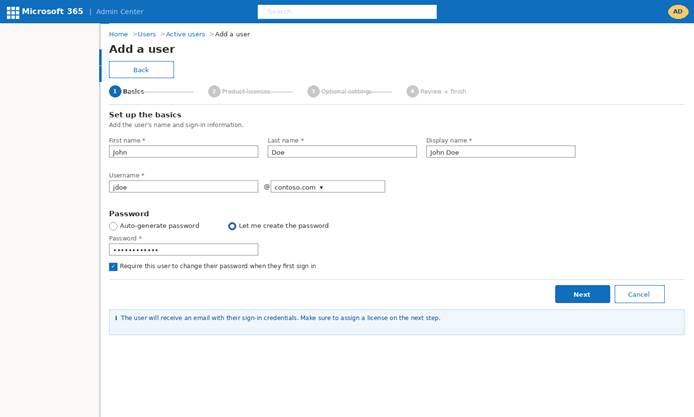
Figure 1: Adding a new user in the Microsoft 365 Admin Center — Active Users screen
Method 2: Using Microsoft Entra ID (Azure AD Portal)
Microsoft Entra ID (formerly Azure Active Directory) gives you more granular control over user properties, group assignments, and identity governance. This method is ideal for admins managing hybrid environments or needing advanced user attribute configuration.
- Navigate to entra.microsoft.com and sign in with your admin account.
- Go to Users > All Users in the left-hand menu.
- Click New user > Create new user.
- Enter the User Principal Name (UPN), Display Name, and other profile attributes.
- Set a temporary password and optionally block sign-in until the user’s start date.
- Assign the user to groups and configure identity settings as needed.
- Click Create to provision the account.
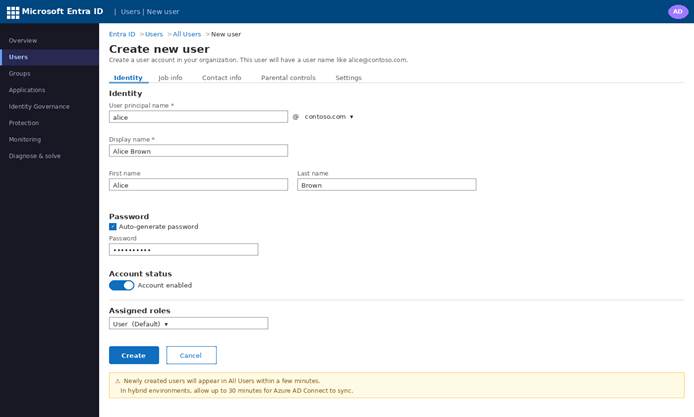
Figure 2: Creating a new user via the Microsoft Entra ID (Azure AD) portal
Method 3: Using PowerShell
PowerShell is the most powerful method and is ideal for automation, large-scale provisioning, or scheduled onboarding tasks. The Microsoft Graph PowerShell SDK is the current recommended module.
Install the required module:
| Install-Module Microsoft.Graph -Scope CurrentUser |
Connect and create a single user:
| Connect-MgGraph -Scopes ‘User.ReadWrite.All’ |
| New-MgUser ` |
| -DisplayName ‘John Doe’ ` |
| -UserPrincipalName ‘jdoe@contoso.com’ ` |
| -MailNickname ‘jdoe’ ` |
| -AccountEnabled $true ` |
| -PasswordProfile @{ |
| Password = ‘P@ssword123!’ |
| ForceChangePasswordNextSignIn = $true |
| } |
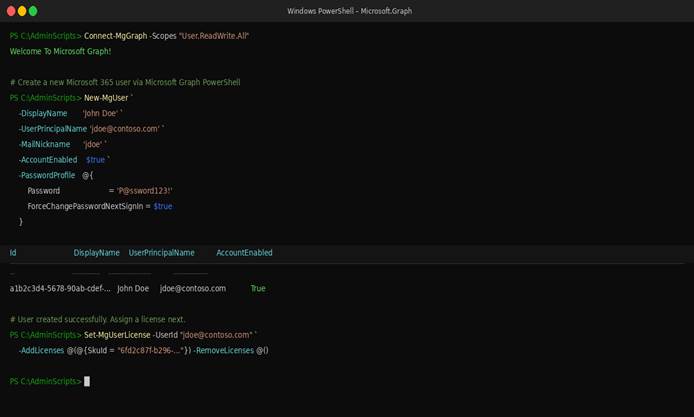
Figure 3: PowerShell terminal showing Microsoft Graph user creation command
5. Bulk User Creation via CSV
When you need to create user accounts en masse — for example, onboarding an entire new department — the CSV bulk upload feature in the Microsoft 365 Admin Center is the most efficient option for admins who prefer not to write scripts.
Step 1 — Prepare Your CSV File
The CSV file must follow the exact column structure required by Microsoft 365. The key required columns are:
- User Name [userPrincipalName] — e.g. jdoe@contoso.com (required)
- First Name, Last Name, Display Name
- Usage Location — two-letter country code such as US or GB (required for license assignment)
- Licenses — the product SKU name, e.g. ENTERPRISEPREMIUM for Microsoft 365 E5
- Password — initial password (must meet your tenant’s password policy)
- Block sign in? — set to Yes for future-dated starters
| ⚠️ Important Always download Microsoft’s sample CSV from the Admin Center first. The column headers are case-sensitive and must match exactly. Do not rename or reorder columns. |
Step 2 — Upload the CSV in the Admin Center
- Go to admin.microsoft.com and navigate to Users > Active Users.
- Click the Add multiple users button (the icon next to Add a user).
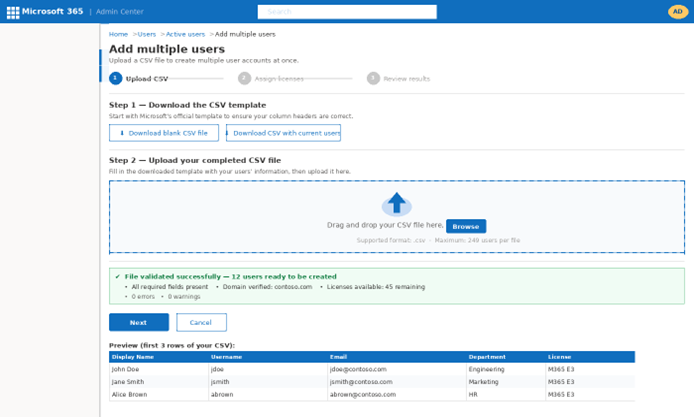
- On the bulk add users panel, click Download a blank CSV file to get the template.
- Fill in your user data in the downloaded template and save it.
- Click Browse and select your completed CSV file.
- Microsoft 365 will validate the file and highlight any errors.
- Fix any flagged errors (duplicate usernames, missing required fields, invalid domains) and re-upload.
- Once validation passes, click Next to review the summary and then Add users to complete the process.
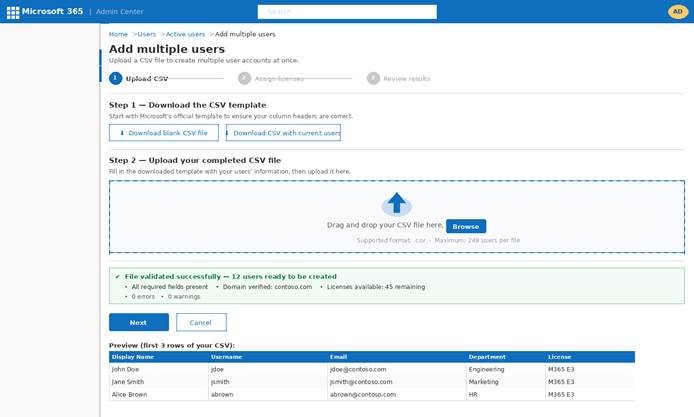
Figure 4: Bulk Add Users panel in Microsoft 365 Admin Center — CSV upload screen
Step 3 — Download the Results File
After the upload completes, Microsoft 365 generates a results file. Download it immediately — it contains the auto-generated or assigned passwords for all newly created accounts. You will need this file to communicate login credentials to your users.
Bulk Creation via PowerShell
For larger organizations or automated pipelines, PowerShell with Microsoft Graph gives you full control. The following snippet reads a CSV and creates all users in one run:
| Import-Csv -Path .\users.csv | ForEach-Object { |
| New-MgUser ` |
| -DisplayName $_.DisplayName ` |
| -UserPrincipalName $_.Email ` |
| -MailNickname $_.Username ` |
| -AccountEnabled ($_.AccountEnabled -eq ‘TRUE’) ` |
| -PasswordProfile @{ |
| Password = $_.Password |
| ForceChangePasswordNextSignIn = $true |
| } |
| } |
6. Assigning Licenses During User Creation
A Microsoft 365 account without a license is a shell — the user can sign in but cannot access any apps or services. Assigning licenses at the time of creation is the best practice for seamless onboarding.
During CSV Bulk Upload
Include the Licenses column in your CSV with the correct product SKU name. You can find your available SKU names under Billing > Licenses in the Admin Center. Common examples include:
| License Name | SKU Identifier |
| Microsoft 365 Business Basic | O365_BUSINESS_ESSENTIALS |
| Microsoft 365 Business Standard | O365_BUSINESS_PREMIUM |
| Microsoft 365 E3 | ENTERPRISEPACK |
| Microsoft 365 E5 | ENTERPRISEPREMIUM |
| 💡 Tip If you run out of available licenses mid-upload, the remaining users will be created without licenses. Always confirm your available license count under Billing > Licenses before running a bulk upload. |
7. Common Issues and Troubleshooting
| Issue | Cause | Fix |
| Username already exists | Duplicate UPN in the CSV or the tenant | Check for existing accounts with Get-MgUser. Rename the conflicting UPN. |
| Domain not verified | The domain in the UPN is not verified in Entra ID | Verify the domain under Settings > Domains in the Admin Center. |
| License unavailable | Not enough licenses in the subscription | Purchase additional licenses under Billing > Purchase services. |
| Usage Location missing | Country code column is blank in the CSV | Add a valid two-letter country code (e.g. US) to every row. |
| Azure AD Connect sync conflict | User already exists on-prem and a cloud account was created separately | Remove the cloud account and let Azure AD Connect sync the on-prem account. |
| Password policy failure | Password does not meet tenant complexity requirements | Ensure the password in the CSV meets your policy (length, complexity, history). |
8. Best Practices for User Creation in Microsoft 365
Use a Consistent Naming Convention
Standardize your UPN format across the organization. Common formats include firstname.lastname@domain.com or firstinitial.lastname@domain.com. Consistent naming makes administration, search, and auditing significantly easier.
Assign the Least Privilege Role
Create all standard employees as regular users, not administrators. Only assign Global Admin or other elevated roles when the role genuinely requires it. This limits the blast radius if an account is compromised.
Enable Multi-Factor Authentication (MFA)
After creating accounts, ensure MFA is enforced via a Conditional Access policy. Never rely on per-user MFA settings — Conditional Access (available with Microsoft Entra ID P1 or P2) gives you granular control over when and how MFA is applied.
Block Sign-In for Future-Dated Hires
If your CSV includes users who have not started yet, set Block sign in? to Yes in the CSV. Create a calendar reminder or an automated task to enable the accounts on their start date.
Automate with Templates and Scripts
For recurring onboarding cycles, build a PowerShell script that reads a standardized CSV, creates users, assigns licenses, and adds them to relevant Microsoft 365 Groups and Teams. This eliminates manual steps and keeps the process repeatable.
9. Conclusion
Bulk user creation via CSV is one of the most practical skills a Microsoft 365 administrator can master. Whether you are onboarding a handful of new joiners or provisioning an entire department, the CSV upload method in the Admin Center offers a fast, structured, and repeatable process that reduces manual effort and the risk of configuration errors.
The key to a successful bulk provisioning workflow is preparation: a clean CSV with verified data, correct domain suffixes, valid license SKUs, and a usage location for every row. Pair that with good post-creation habits — license verification, MFA enforcement, and group assignments — and you have a professional-grade onboarding pipeline.
10. Frequently Asked Questions
Q1: Can I create users in Microsoft 365 without assigning licenses?
Yes. You can create accounts without licenses — just leave the Licenses column blank in your CSV. The user will be created and can sign in, but they will not have access to any Microsoft 365 apps or services until a license is assigned. You can assign licenses later individually or in bulk from the Admin Center under Users > Active Users.
Q2: How long does it take for a newly created user to become active?
In most cases, a newly created Microsoft 365 user account is active within a few minutes. However, if you are in a hybrid environment using Microsoft Entra Connect, synchronization runs on a schedule — by default every 30 minutes. You can trigger an immediate sync using the Start-ADSyncSyncCycle -PolicyType Delta command from the Entra Connect server.
Q3: Can I edit user details after the account is created?
Yes. You can edit any user’s profile information, licenses, roles, and settings at any time from the Microsoft 365 Admin Center (Users > Active Users > select the user) or via PowerShell using the Update-MgUser cmdlet.
Q4: What is the maximum number of users I can create in a single CSV upload?
The Microsoft 365 Admin Center supports up to 249 users per CSV upload. If you need to create more than 249 users at once, split your data into multiple CSV files and run the upload sequentially, or use a PowerShell script which has no built-in limit.
Q5: Is bulk user creation via CSV secure?
The process itself is secure — it runs over encrypted connections to Microsoft’s servers. However, the CSV file on your local machine is a risk: it contains usernames and plain-text initial passwords. Always delete or securely archive the CSV after the upload, and distribute initial passwords to users through a secure channel rather than email.
