

| A Practical, Step-by-Step Guide for Beginner to Intermediate Microsoft 365 Admins |
Introduction
In today’s remote and hybrid work environment, securing access to Microsoft 365 is no longer optional — it is mission-critical. Cyber threats like phishing, credential stuffing, and brute-force attacks are constantly targeting corporate accounts. Passwords alone are no longer enough.
Multi-Factor Authentication (MFA) adds a second layer of verification, ensuring that even if a user’s password is compromised, an attacker still cannot access their account without the second factor — typically a phone notification or a time-based code.
Imagine a new employee, Sarah, just joined your company. On her first day, you create her Microsoft 365 account. Without MFA, if a hacker steals her password, they get full access to her email, SharePoint files, and Teams messages. With MFA enabled, the hacker is stopped cold — they cannot approve the sign-in without Sarah’s phone.
This guide walks Microsoft 365 administrators — from beginners to intermediate level — through every method available to enable and manage MFA.
What Is Multi-Factor Authentication (MFA)?
MFA is a security process that requires users to verify their identity using two or more factors before gaining access to an account:
- Something you know — your password
- Something you have — your phone (Microsoft Authenticator, SMS code)
- Something you are — biometrics (fingerprint, Face ID)
In Microsoft 365, MFA is managed through Microsoft Entra ID (formerly Azure Active Directory). When a user signs in, they enter their password and are then prompted for a second verification step.
Prerequisites
Required Admin Roles
- Global Administrator — full control over all settings
- Security Administrator — can manage security and MFA policies
- User Administrator — can enable per-user MFA for individual accounts
Required Subscriptions & Licenses
| Plan | MFA Capability | Recommended For |
| Microsoft 365 Free / Basic | Security Defaults (basic MFA) | Small orgs, no license budget |
| Entra ID P1 (M365 Business Premium) | Conditional Access policies | Most businesses |
| Entra ID P2 | Risk-based Conditional Access | Enterprise / high-security orgs |
Additional Requirements
- Active Microsoft 365 subscription with verified domain
- Access to Microsoft Entra admin center (entra.microsoft.com)
- Users must have a smartphone for the Authenticator app (optional but recommended)
Method 1: Enable MFA via Security Defaults
Security Defaults is the simplest way to enforce MFA across your entire organization. It is free for all Microsoft 365 tenants and requires no additional licensing.
| ⚠️ Important Note |
| Security Defaults and Conditional Access policies cannot be used at the same time. |
| If you plan to use Conditional Access (Method 3), you must disable Security Defaults first. |
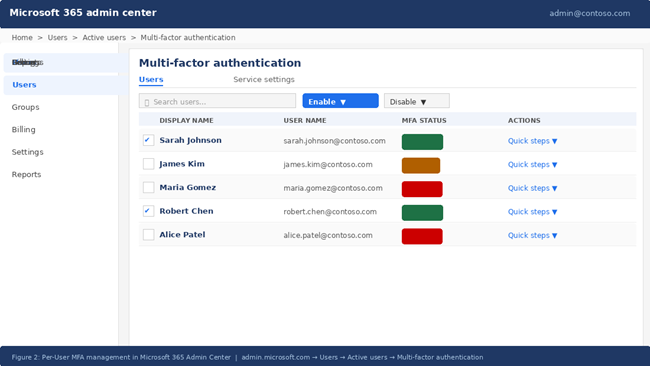
Steps to Enable Security Defaults
- Sign in to the Microsoft Entra admin center at entra.microsoft.com
- In the left navigation, go to Identity → Overview → Properties
- Scroll down and click Manage security defaults
- In the panel on the right, toggle Enable security defaults to Yes
- Click Save to apply the changes
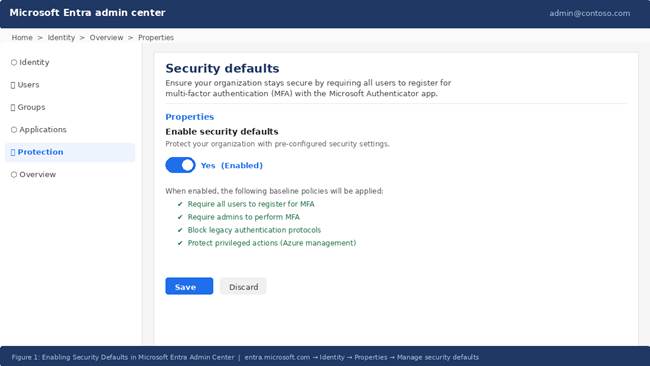
Figure 1: Enabling Security Defaults in Microsoft Entra Admin Center
Once enabled, all users in your organization will be required to register for MFA within 14 days. Admins are required to use MFA immediately.
Method 2: Enable MFA Per User (Microsoft 365 Admin Center)
Per-user MFA allows you to enable MFA for specific users individually. This method is useful for smaller deployments or when you need to roll out MFA in phases.
Steps to Enable Per-User MFA
- Sign in to the Microsoft 365 Admin Center at admin.microsoft.com
- Go to Users → Active Users
- Click the Multi-factor authentication button in the top toolbar
- In the MFA management portal, find the user(s) you want to enable
- Select the checkbox next to their name
- In the right panel, click Enable, then confirm by clicking Enable multi-factor auth
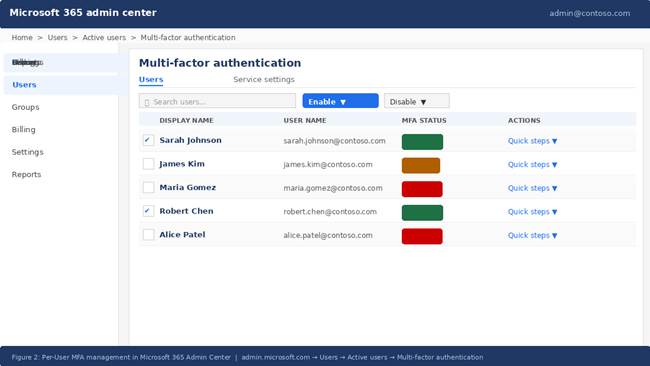
Figure 2: Per-User MFA Management in Microsoft 365 Admin Center
| 📋 Per-User MFA States Explained |
| Disabled — MFA is not required for this user (default) |
| Enabled — MFA is required; user has not yet registered their method |
| Enforced — MFA is required; user has successfully registered their method |
Method 3: Enable MFA via Conditional Access (Recommended)
Conditional Access is Microsoft’s modern, policy-driven approach to MFA — and the recommended method for organizations with Entra ID P1 or higher. It gives you granular control over when and how MFA is required.
Step-by-Step: Create a Conditional Access Policy for MFA
- Sign in to entra.microsoft.com with a Global or Security Administrator account
- Navigate to Protection → Conditional Access → Policies
- Click + New policy and give it a descriptive name (e.g., Require MFA for All Users)
- Under Assignments → Users, choose All users (exclude your break-glass admin account)
- Under Target Resources, select All cloud apps
- Under Access Controls → Grant, select Grant access, then check Require multi-factor authentication
- Under Enable policy, select Report-only first to test the policy without enforcing it
- Click Create to save the policy
- After reviewing Report-only results, switch the policy to On to enforce MFA
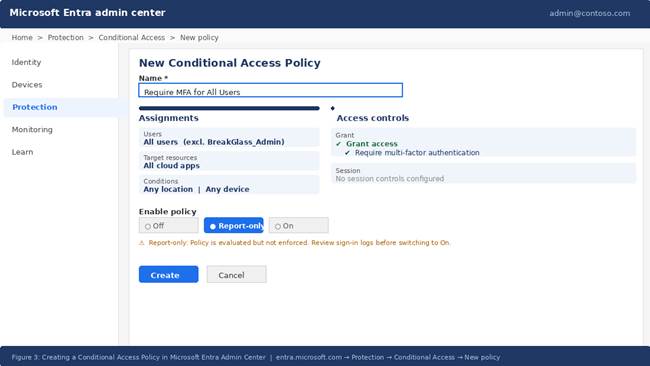
Figure 3: Creating a Conditional Access Policy in Microsoft Entra Admin Center
| ✅ Best Practice: Always Start in Report-Only Mode |
| Report-only mode lets you see which users would be affected before enforcement. |
| Review the sign-in logs under Entra ID → Monitoring → Sign-in logs to analyze impact. |
| Only switch to On after you are confident the policy is correctly scoped. |
Excluding Break-Glass Accounts
A break-glass account is an emergency admin account that should always remain accessible even if all other policies fail. It must be excluded from all Conditional Access policies.
- Create a dedicated break-glass account with a strong, unique password
- Store the credentials in a secure, offline location (e.g., a safe)
- Exclude this account from all MFA Conditional Access policies
- Set up alerts to notify you whenever this account signs in
Method 4: Enable MFA via PowerShell
PowerShell is ideal for administrators who need to enable MFA for a large number of users at once, or automate MFA as part of an onboarding script.
Prerequisites
- Install the MSOnline module: Install-Module MSOnline
- Connect to your tenant: Connect-MsolService
Enable MFA for a Single User
| # Connect to Microsoft Online Connect-MsolService # Define MFA requirement $mfaState = New-Object -TypeName Microsoft.Online.Administration.StrongAuthenticationRequirement $mfaState.RelyingParty = ‘*’ $mfaState.State = ‘Enabled’ # Apply to a specific user Set-MsolUser -UserPrincipalName ‘sarah@contoso.com’ ` -StrongAuthenticationRequirements $mfaState |
Bulk Enable MFA for All Users
| # Connect to Microsoft Online Connect-MsolService # Apply MFA to all licensed users in the tenant $users = Get-MsolUser -All | Where-Object { $_.IsLicensed -eq $true } foreach ($user in $users) { $mfaState = New-Object -TypeName Microsoft.Online.Administration.StrongAuthenticationRequirement $mfaState.RelyingParty = ‘*’ $mfaState.State = ‘Enforced’ Set-MsolUser -UserPrincipalName $user.UserPrincipalName ` -StrongAuthenticationRequirements $mfaState Write-Host (‘MFA Enabled: ‘ + $user.UserPrincipalName) } |
End-User MFA Registration
After MFA is enabled, users will be prompted to register their authentication method the next time they sign in. Here is what they should do:
- Go to office.com and sign in with username and password
- A prompt says: More information required — click Next
- Download the Microsoft Authenticator app on their smartphone
- In the app, tap + → Work or school account → Scan QR code
- Scan the QR code displayed on the registration screen
- Microsoft sends a test notification — user taps Approve to confirm
- Optionally add a phone number as a backup verification method
- Click Done — MFA registration is complete
| 💡 Tip for Admins |
| Send a pre-enrollment email to users before enabling MFA to reduce help desk tickets. |
| Direct users to aka.ms/mfasetup to self-register before enforcement begins. |
| Consider a phased rollout: pilot group → department → entire organization. |
Common Issues and Troubleshooting
| Issue | Likely Cause | Resolution |
| User not prompted for MFA | Policy not targeting the user or still in Report-only mode | Check CA policy assignments; switch from Report-only to On |
| MFA prompt loops repeatedly | Authenticator app not properly configured | Reset user’s MFA methods in Entra ID → Users → Authentication methods |
| User locked out after MFA setup | Lost access to phone / no backup method | Admin resets MFA via Entra ID or uses break-glass account |
| Legacy apps failing after MFA | App does not support modern authentication | Enable app passwords or block legacy auth via Conditional Access |
| Conditional Access not applying | Security Defaults still enabled | Disable Security Defaults before creating Conditional Access policies |
Best Practices for MFA in Microsoft 365
1. Use Conditional Access over per-user MFA: Conditional Access gives you policy-based, contextual control. Per-user MFA is static and harder to manage at scale.
2. Always exclude break-glass accounts: Never lock yourself out of your tenant. Always maintain at least one emergency admin account excluded from MFA policies.
3. Start in Report-only mode: Always validate a new Conditional Access policy in Report-only mode before enforcement to avoid unexpected disruptions.
4. Enforce Microsoft Authenticator app: App-based authentication is more secure than SMS. SMS codes can be intercepted via SIM-swapping attacks.
5. Block legacy authentication protocols: Legacy protocols like IMAP, POP3, and SMTP AUTH do not support MFA. Create a Conditional Access policy to block them.
6. Use Named Locations: Define trusted IP ranges (e.g., your office network) as Named Locations to reduce MFA friction for on-site employees.
7. Monitor sign-in logs regularly: Review Entra ID → Monitoring → Sign-in logs for failed MFA attempts and suspicious activity.
8. Communicate with users before rollout: Send clear instructions and a self-registration link (aka.ms/mfasetup) at least one week before enforcement.
Conclusion
Enabling Multi-Factor Authentication in Microsoft 365 is one of the highest-impact security actions any administrator can take. According to Microsoft, MFA blocks over 99.9% of account compromise attacks. The small friction it adds for users is vastly outweighed by the protection it provides.
Whether you use Security Defaults for simplicity, per-user MFA for targeted rollouts, Conditional Access for enterprise-grade policy control, or PowerShell for automation — Microsoft 365 gives you the flexibility to implement MFA the way that best fits your organization.
Start with Report-only mode, communicate clearly with your users, protect your break-glass accounts, and work toward a full Zero Trust posture with risk-based Conditional Access policies.
Frequently Asked Questions (FAQs)
Q: Can I enable MFA for only some users, not everyone?
A: Yes. With per-user MFA, you can enable it for individual accounts. With Conditional Access, you can scope policies to specific groups, departments, or roles. This allows a phased rollout — starting with IT staff before rolling out to the entire organization.
Q: What is the difference between Security Defaults and Conditional Access?
A: Security Defaults is a free, one-size-fits-all MFA enforcement that applies the same rules to everyone. Conditional Access is a flexible, policy-based system (requires Entra ID P1 or higher) that lets you define exactly when, for whom, and under what conditions MFA is required.
Q: What happens if a user loses their phone and cannot complete MFA?
A: An administrator can reset the user’s MFA methods in the Entra admin center by navigating to Users → select the user → Authentication methods → and deleting the registered methods. The user will then be prompted to re-register on their next sign-in.
Q: Does MFA work with legacy email apps like Outlook 2010 or Apple Mail?
A: Legacy authentication protocols used by older apps (IMAP, POP, SMTP) do not support MFA. You should upgrade users to modern Outlook clients, enable app passwords as a workaround, or block legacy authentication entirely via Conditional Access.
Q: How long does it take for MFA to be enforced after I enable it?
A: With Security Defaults, users have up to 14 days to register before MFA is enforced. With Conditional Access set to On, enforcement is immediate at next sign-in. Per-user MFA: Enabled state prompts at next sign-in; Enforced state requires MFA immediately.
This guide is written for Microsoft 365 administrators. Always verify configurations in a test environment before applying to production. For the latest Microsoft documentation, visit docs.microsoft.com
