

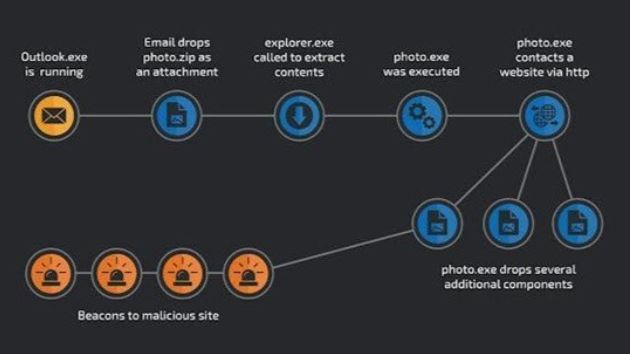
Deploy the Stop LOLBINS (Living Off The Land Binary Attacks) prevention-focused ASR rules via custom configuration profile (OMA-URI) in Intune
Creating Attack Surface Reduction (ASR) rules via Microsoft Intune is an effective way to protect against LOLBins (Living Off the Land Binaries), which are legitimate tools (like powershell.exe, rundll32.exe, etc.) abused by threat actors for lateral movement, privilege escalation, and persistence.
Overview: What We Will Do
- Understand which ASR rules help mitigate LOLBins.
- Create a custom ASR policy in Intune.
- Assign the policy to security groups (all devices or specific ones).
- Monitor and validate enforcement.
- (Optional) Start with audit mode before blocking.
1. Relevant ASR Rules to Block LOLBins
Microsoft recommends these ASR rules to mitigate LOLBin-based attacks:
Block executable content from email and webmail
D3E037E1-3EB8-44C8-A917-57927947596D
Use advanced protection against ransomware
C1DB55AB-C21A-4637-BB3F-A12568109D35
Block credential stealing from LSASS
9E6B8B8A-A4A3-4C36-89B4-1C2C6E7BD7D1
Block Office apps from creating child processes
D4F940AB-401B-4EFC-AADC-AD5F3C50688A
Block Office apps from injecting code into other processes
75668C1F-73B5-4CF0-BB93-3ECF5CB7CC84
Block process creations from PSExec and WMI commands
D1E49AAC-8F56-4280-B9BA-993A6D77406C
Block JavaScript/WSH scripts from launching downloaded executable content
5BEB7EFE-FD9A-4556-801D-275E5FFC04CC
Configure ASR Rules
- Name: ASR – LOLBin Protection Policy
- Description: Blocks common LOLBin attack vectors via ASR rules
Click Next and in Configuration settings:
Enable the following rules:
ASR Rule and Action
Block executable content from email and webmail
Block Use advanced protection against ransomware-
Block credential stealing from LSASS
Block Office apps from creating child processes
Block Office apps from injecting code into other processes
Block process creations from PSExec and WMI commands
Block JavaScript/WSH scripts from launching downloaded content
Note: If testing, set Audit instead of Block first, then monitor via Microsoft Defender logs.
Assign to Device Groups
- Click Next to Assignments
- Assign to: A dynamic device group (e.g., All Windows 10 Devices) Or use phased deployment to a test group first
Click Next → Review + Create → Create
Enable Microsoft Defender Antivirus (Prerequisite)
ASR rules require Microsoft Defender Antivirus (MDAV) to be running in Active mode.
If using a third-party AV, configure MDAV in Passive mode, but some ASR rules may not fully function.
You can create a Defender Antivirus policy in Intune:
- Endpoint Security → Antivirus → Windows 10 and later
- Enable Real-time protection
- Ensure Cloud-delivered protection is On
- Set Automatic sample submission to Send safe samples automatically
Monitoring and Reporting
You can monitor ASR events in:
- Microsoft Defender Security Center: Go to Reports → Attack Surface Reduction Use Advanced Hunting (Query example below)
- Windows Event Viewer: Path: Applications and Services Logs > Microsoft > Windows > Windows Defender > Operational
DeviceEvents
| where ActionType startswith “Asr”
| summarize count() by ActionType, DeviceName
Summary: Deployment Workflow
Step 1: Identify ASR rules for LOLBins
Step 2: Create ASR policy in Intune
Step 3: Assign to device/security groups
Step 4: Monitor logs and user feedback
Step 5: Tune rules, switch from audit to blockHow to Deploy via Intune (OMA-URI Method)
- Go to Intune Admin Center: https://intune.microsoft.com
- Navigate to Devices > Configuration profiles > Create profile

- Choose: Platform: Windows 10 and later Profile type: Templates → Custom

- Click Create and enter: Name: ASR – LOLBIN Protection JSON Description: Deploy ASR rules to prevent Living Off the Land attacks

- Under OMA-URI Settings, click Add:

- Name: Attack Surface Reduction Rules
- Description: JSON definition for ASR rules
- OMA-URI:
./Device/Vendor/MSFT/Policy/Config/Defender/AttackSurfaceReductionRules
Data type: String
- Value:
[
{
“Id”: “D3E037E1-3EB8-44C8-A917-57927947596D”,
“Action”: “1”
},
{
“Id”: “C1DB55AB-C21A-4637-BB3F-A12568109D35”,
“Action”: “1”
},
{
“Id”: “9E6B8B8A-A4A3-4C36-89B4-1C2C6E7BD7D1”,
“Action”: “1”
},
{
“Id”: “D4F940AB-401B-4EFC-AADC-AD5F3C50688A”,
“Action”: “1”
},
{
“Id”: “75668C1F-73B5-4CF0-BB93-3ECF5CB7CC84”,
“Action”: “1”
},
{
“Id”: “D1E49AAC-8F56-4280-B9BA-993A6D77406C”,
“Action”: “1”
},
{
“Id”: “5BEB7EFE-FD9A-4556-801D-275E5FFC04CC”,
“Action”: “1”
}
]


6. Assign the profile to your test or production device group(s)- Add required device group or click Add all devices

7. Click Next > Review + Create > Create

Now the policy is enforced to block all LOLBINS (Living Off The Land Binary Attacks).
This policy prevents from risky LOLBINS attack but the requirements are devices must be enrolled into Microsoft Intune, Defender for Endpoint must be enabled and Microsoft Intune along with Microsoft Defender integration must be configured correctly. Lastly Microsoft Defender must be enabled on all devices (If require implement tamper protection to prevent users from disabling Defender).
I hope this will help you and if it does, give us like and comment. Also don’t forget to share.
