

Complete Step-by-Step Guide for Microsoft 365 Admins
A practical reference for beginners to intermediate administrators
1. Introduction
Managing users in Microsoft 365 is one of the most critical tasks for any IT administrator. At the heart of this process is license assignment — the mechanism that controls which Microsoft 365 services each user can access. Without a properly assigned license, a user cannot access Outlook, Microsoft Teams, SharePoint, OneDrive, or any other Microsoft 365 application.
A Microsoft 365 license is essentially a subscription entitlement tied to a user account. It defines which apps and services that user is permitted to use based on the plan your organization has purchased — whether that is Microsoft 365 Business Basic, Business Premium, E3, E5, or another tier.
Real-World Example: Imagine you have just hired Sarah as a new marketing manager. On her first day, she needs access to her company email, Microsoft Teams for collaboration, and OneDrive to store files. None of this is possible until an admin assigns her a Microsoft 365 license. This is the exact scenario this guide addresses — the complete Microsoft 365 user licensing process from prerequisites to best practices.
2. What Happens When You Assign a License
When you assign a Microsoft 365 license to a user, several things happen automatically behind the scenes:
- An Exchange Online mailbox is created for the user, enabling them to send and receive email.
- Microsoft Teams access is provisioned, allowing the user to join meetings and channels.
- SharePoint permissions are established so the user can access team sites.
- OneDrive storage is allocated — typically 1 TB for most plans.
- Microsoft 365 Apps (Word, Excel, PowerPoint) become available for installation.
- The user appears in the Global Address List (GAL) for your organization.
Services are activated within minutes to a few hours of assignment, though in some cases — particularly for large organizations — full provisioning may take up to 24 hours.
| 💡 Pro Tip You can selectively enable or disable individual service plans within a license. For example, you can assign an E3 license but disable Sway or Yammer if your organization does not use those services. |
3. Prerequisites
Before you can assign a Microsoft 365 license, make sure the following conditions are met:
Required Admin Roles
- Global Administrator — Full admin access to all Microsoft 365 services.
- License Administrator — Can assign, unassign, and manage licenses only.
- User Administrator — Can manage user accounts and assign licenses.
Other Requirements
- Active subscription: Your organization must have a paid Microsoft 365 plan with available license seats.
- User account must exist: You cannot assign a license to a non-existent user. Create the account first.
- Usage location set: The user’s Usage Location must be configured before license assignment. This is required because some Microsoft 365 services are not available in all countries.
| ⚠️ Important Note Always set the Usage Location on a user account before assigning a license. Go to the user’s profile > Edit contact information > Usage location. Failing to do so may result in certain services being unavailable. |
4. Methods to Assign Microsoft 365 Licenses
Microsoft 365 offers four primary methods to assign licenses. Choose based on the number of users and your automation needs:
| Method | Best For | Skill Level |
| Admin Center | 1–20 users, quick tasks | Beginner |
| Entra ID (Azure AD) | Single-user, fine control | Intermediate |
| PowerShell | Bulk, scripted automation | Intermediate+ |
| Group-Based | Large organizations | Intermediate |
5. Method 1: Using the Microsoft 365 Admin Center
The Microsoft 365 Admin Center is the simplest and most commonly used method for assigning licenses, especially for small to medium organizations. It requires no scripting knowledge and provides a straightforward graphical interface.
Step-by-Step Instructions
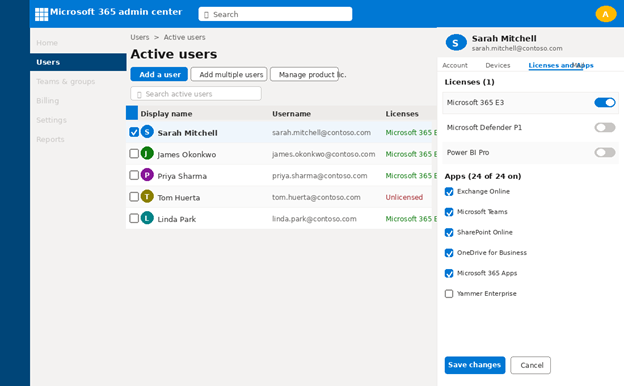
- Sign in to the Microsoft 365 Admin Center at admin.microsoft.com using your admin credentials.
- In the left navigation pane, click Users, then select Active Users.
- Locate the user you want to assign a license to. Click the circle/checkbox next to their name to select them.
- In the user’s details pane on the right, click Licenses and Apps.
- Check the box next to the desired license (e.g., Microsoft 365 Business Premium).
- Optionally expand Apps and Services to enable or disable specific features within that license.
- Click Save Changes at the bottom of the pane.
Figure 1: Assigning a license in Microsoft 365 Admin Center — Active Users page with License and Apps pane open
Assigning to Multiple Users at Once: Select multiple users by checking all their boxes, then click Manage product licenses at the top of the list. You can assign up to 20 users at a time through this method.
6. Method 2: Using Microsoft Entra ID (Azure AD)
Microsoft Entra ID (formerly Azure Active Directory) provides an alternative interface for license assignment that is particularly useful when you need fine-grained control over individual service plans, or when your workflow is centered around the Azure Portal.
Step-by-Step Instructions
- Navigate to the Microsoft Entra Admin Center at entra.microsoft.com and sign in.
- Go to Identity > Users > All Users and search for the user.
- Click on the user’s name to open their profile.
- Select Licenses from the left menu under the user profile.
- Click + Assignments to open the license assignment panel.
- Check the boxes for the licenses you wish to assign and click Save.
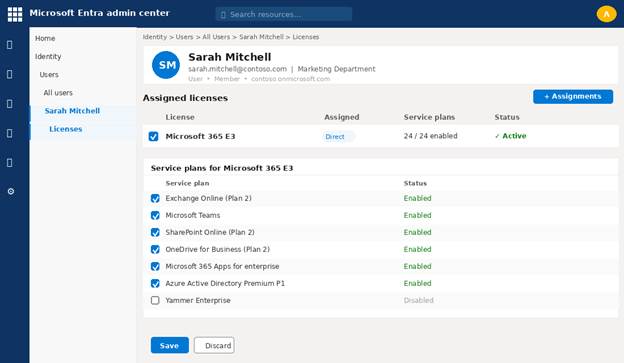
Figure 2: License assignment interface inside Microsoft Entra ID — User profile Licenses blade with service plan toggles
| 💡 Tip The Entra ID portal is ideal when you also need to manage group memberships, conditional access policies, or role assignments in the same session. It gives you a consolidated identity management view for each user. |
7. Method 3: Using PowerShell
PowerShell is the preferred approach for administrators who need to automate license assignment, handle bulk operations, or integrate licensing into a scripted onboarding workflow. The Microsoft Graph PowerShell SDK is the modern, recommended module.
Prerequisites: Install the Module
| # Install Microsoft Graph PowerShell SDK |
| Install-Module Microsoft.Graph -Scope CurrentUser |
| # Connect to your tenant |
| Connect-MgGraph -Scopes ‘User.ReadWrite.All’, ‘Organization.Read.All’ |
Step 1: Find Your License SKU ID
| # List all available licenses in your tenant |
| Get-MgSubscribedSku | Select SkuPartNumber, SkuId, ConsumedUnits |
Step 2: Assign the License
| # Assign a Microsoft 365 E3 license to a single user |
| $params = @{ |
| AddLicenses = @( |
| @{ SkuId = ‘6fd2c87f-b296-42f0-b197-1e91e994b900’ } |
| ) |
| RemoveLicenses = @() |
| } |
| Set-MgUserLicense -UserId ‘sarah@contoso.com’ -BodyParameter $params |
Legacy MSOnline (also supported)
| Set-MsolUserLicense -UserPrincipalName ‘user@domain.com’ ` |
| -AddLicenses ‘tenant:ENTERPRISEPACK’ |
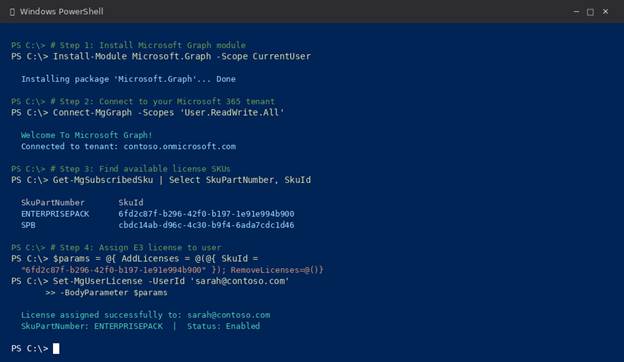
Figure 3: PowerShell terminal showing Microsoft Graph SDK commands for license assignment
8. Assigning Licenses to Multiple Users (Bulk Assignment)
When onboarding entire departments, assigning licenses one by one is inefficient. Use one of the following bulk methods:
Option A: CSV Upload via Admin Center
- Go to Users > Active Users, click Add multiple users.
- Download the CSV template and fill in columns: Username, Display Name, and License.
- Upload the completed CSV, verify the preview, and click Add Users.
Option B: PowerShell Bulk Script
| # Import users from CSV and assign licenses |
| $users = Import-Csv “C:\onboarding\new_users.csv” |
| $skuId = “6fd2c87f-b296-42f0-b197-1e91e994b900” |
| foreach ($user in $users) { |
| $params = @{ AddLicenses = @(@{ SkuId = $skuId }); RemoveLicenses = @() } |
| Set-MgUserLicense -UserId $user.UserPrincipalName -BodyParameter $params |
| Write-Host “Licensed: $($user.UserPrincipalName)” |
| } |
Option C: Group-Based Licensing (Recommended for Large Orgs)
See Section 9 for the full setup guide on group-based licensing — the most scalable and automated approach.
9. Group-Based Licensing (Recommended)
Group-based licensing is Microsoft’s recommended approach for organizations with 10 or more users. Instead of assigning licenses to individual users, you assign a license to a security group. Any user added to that group automatically receives the license — and loses it when removed.
Benefits
- Automated license assignment and removal tied to group membership.
- Consistent licensing policies across departments (e.g., all Sales users get E3).
- Reduces manual admin effort and human error significantly.
- Integrates with HR systems via SCIM or Azure AD Connect for automatic provisioning.
Step-by-Step Setup in Microsoft Entra ID
- Sign in to entra.microsoft.com.
- Navigate to Identity > Groups > All Groups.
- Create a new Security Group (e.g., ‘LIC-M365-E3’) or select an existing one.
- Open the group, click Licenses in the left menu.
- Click + Assignments, select the license(s) to assign, and click Save.
- Add users to the group via Members > + Add members. Each added user receives the license automatically.
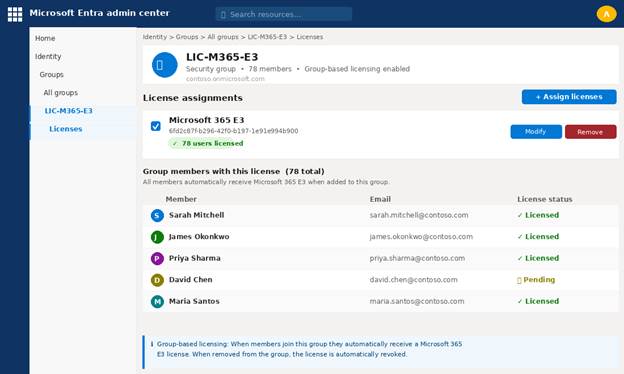
Figure 4: Group-based license assignment in Microsoft Entra ID — Security group with Microsoft 365 E3 license assigned to 78 members
| ✅ Best Practice Name your groups descriptively: ‘LIC-M365-E3’, ‘LIC-Teams-Essentials’. Use dynamic group membership rules (e.g., department = ‘Sales’) to fully automate license management — no manual additions needed. |
10. Common Issues and Troubleshooting
Issue 1: No Available Licenses
Symptom: The license checkbox is grayed out or you see ‘0 licenses available.’
Fix: Go to Billing > Your Products and purchase additional seats. Alternatively, audit existing users to reclaim unused licenses from inactive accounts.
Issue 2: License Assignment Failure
Symptom: An error appears after trying to save license changes.
Fix: Verify the user’s Usage Location is set. Check for service plan conflicts. Review the Errors & Issues tab on the Billing > Licenses page for specific error codes.
Issue 3: Azure AD Connect Sync Problems
Symptom: A synced (hybrid) user does not receive their license or changes are not reflected.
Fix: Run a manual sync: Start-ADSyncSyncCycle -PolicyType Delta. Ensure the user’s UPN in on-premises AD matches the Microsoft 365 tenant format.
Issue 4: Service Plan Conflicts
Symptom: A specific service shows as failed in the group-based licensing errors tab.
Fix: A user may already have a conflicting service plan from another license. Remove the duplicate service from one of the licenses or consolidate to a single unified license.
11. Best Practices for Microsoft 365 User Licensing
| Best Practice | Reason | Impact |
| Use group-based licensing | Automates onboarding/offboarding | ⬆ Efficiency |
| Audit quarterly | Remove unused licenses | ⬇ Cost |
| Assign only needed services | Reduce attack surface | ⬆ Security |
| Set usage location first | Avoid regional restrictions | ⬆ Reliability |
| Document license policies | Consistent admin decisions | ⬆ Governance |
Following these best practices ensures your Microsoft 365 environment stays cost-efficient, secure, and manageable as your organization grows.
12. Conclusion
Assigning licenses in Microsoft 365 is a foundational administrative skill. Whether you are onboarding a single employee or provisioning an entire department, understanding the four key methods — Admin Center, Entra ID, PowerShell, and group-based licensing — gives you the flexibility to handle any scenario efficiently.
For small teams, the Admin Center provides a quick and visual experience. For medium to large organizations, group-based licensing combined with dynamic group rules is the most scalable and cost-efficient approach — reducing admin overhead and eliminating the risk of orphaned licenses.
Always remember to set usage locations before assigning licenses, audit your license usage quarterly, and assign only the services each user actually needs. These simple habits can save your organization hundreds or thousands of dollars annually on unused Microsoft 365 subscriptions.
| 📚 Official Documentation Assign or unassign licenses: learn.microsoft.com/microsoft-365/admin/manage/assign-licenses-to-users Group-based licensing: learn.microsoft.com/entra/identity/users/licensing-admin-center PowerShell licensing: learn.microsoft.com/microsoft-365/enterprise/assign-licenses-to-user-accounts |
13. Frequently Asked Questions (FAQs)
| Q: Can I assign multiple licenses to one user? A: Yes. You can assign multiple licenses to a single user. For example, a user could have both a Microsoft 365 E3 license and an add-on like Microsoft Defender for Office 365. Simply select multiple license checkboxes in the Licenses and Apps pane. Be cautious of service plan conflicts — review any errors in the Billing > Licenses > Errors & Issues tab. |
| Q: What happens if I remove a license from a user? A: When you remove a license, the user immediately loses access to the associated services. Their data (mailbox, OneDrive files) is typically retained for 30 days before being permanently deleted, giving you time to back up or transfer content. The license seat becomes immediately available for reassignment. |
| Q: How long does it take for services to activate after license assignment? A: Most services activate within a few minutes. However, in large tenants or during high-traffic periods, full provisioning can take up to 24 hours. If a service has not activated after 24 hours, check the user’s usage location setting and verify there are no service plan conflicts under Billing > Licenses > Errors & Issues. |
| Q: Do guest users require a Microsoft 365 license? A: Guest users (external collaborators) do not need a license for basic Teams and SharePoint access. However, if you want a guest to have an Exchange Online mailbox or access to Microsoft 365 Apps, a license is required. Guest access rights are governed by the Microsoft 365 External Identity policies in Entra ID. |
| Q: Can I use PowerShell to check which users do not have a license assigned? A: Yes. Use: Get-MgUser -Filter ‘assignedLicenses/$count eq 0’ -ConsistencyLevel eventual -CountVariable count | Select DisplayName, UserPrincipalName. This returns all unlicensed accounts — useful for auditing and ensuring no active users are left without access. |
