

Introduction
Every organization that uses Microsoft 365 needs a simple and reliable way to manage user accounts. Whether you are a small business onboarding a new hire or an enterprise IT team managing thousands of users, knowing how to create user in Microsoft 365 is one of the most essential admin skills you can have.
A Microsoft 365 user account is a digital identity that allows an employee to sign in to Microsoft services such as Outlook, Teams, SharePoint, OneDrive, and more. When you create a new user account and assign a license, the employee gets instant access to all the tools they need on day one.
Consider a real-world example: Sarah has just been hired as a Marketing Manager. Before she arrives, the IT admin must create her Microsoft 365 account, assign the correct license, set her password, and configure her access. This guide walks you through exactly how to do that.
What Happens When You Create a User?
When you add a new user in Microsoft 365 admin center, several things happen automatically:
- The user receives a unique username and login credentials (e.g., sarah@contoso.com)
- A mailbox is created in Exchange Online if an appropriate license is assigned
- The account is registered in Microsoft Entra ID (formerly Azure Active Directory)
- The user can sign in to Microsoft 365 apps based on the license and permissions granted
- Admin roles can be assigned to give the user elevated management access
Prerequisites Before You Begin
Before you start the Office 365 user creation process, ensure you have the following:
| Requirement | Details |
| Admin Role | Global Admin or User Admin role in your Microsoft 365 tenant |
| Active Subscription | A valid Microsoft 365 subscription with available user licenses |
| Domain Setup | A verified custom domain (e.g., contoso.com) or use the default onmicrosoft.com domain |
| Browser Access | Modern browser (Edge, Chrome, Firefox) to access admin.microsoft.com |
| User Details | Name, job title, department, and any special access requirements for the new user |
Methods to Create Users in Microsoft 365
Method 1: Using the Microsoft 365 Admin Center
The Microsoft 365 Admin Center is the easiest method to create user Microsoft 365 accounts. It provides a guided wizard interface that takes you through each step.
| 1 | Sign In to the Admin Center Open your browser and go to admin.microsoft.com. Sign in with your Global Admin or User Admin credentials. |
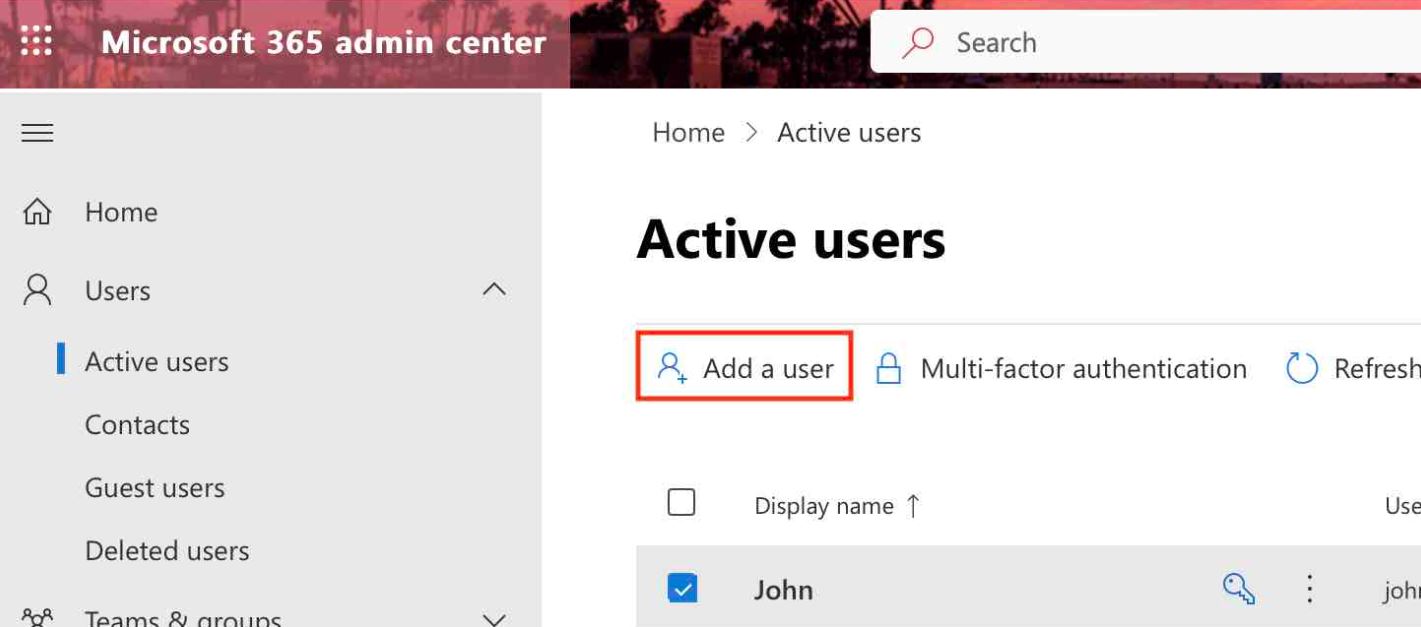
| 2 | Navigate to Active Users In the left panel, click Users then select Active Users. This shows all current user accounts in your tenant. |
| 3 | Click ‘Add a User’ At the top of the Active Users page, click Add a user to launch the new user creation wizard. |
| 4 | Enter User Details Fill in the user’s First name, Last name, Display name, and Username (e.g., sarah@contoso.com). |
| 5 | Set Password Choose to auto-generate a password or set one manually. Require the user to change it at first sign-in. |
| 6 | Assign a License Select the user’s country/region, then assign a Microsoft 365 license. This activates their access to services. |
| 7 | Assign Roles (Optional) If the user needs admin access, assign the appropriate role. Otherwise, leave as User (no admin access). |
| 8 | Click Finish Adding Review the details and click Finish adding. The account appears in Active Users within minutes. |
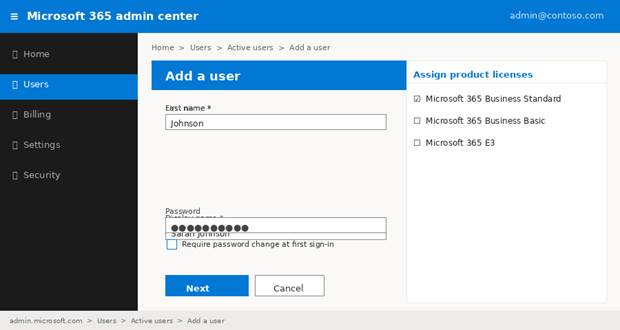
Figure 1: Creating a new user in Microsoft 365 Admin Center (admin.microsoft.com → Users → Active Users → Add a user)
Method 2: Using Microsoft Entra ID (Azure AD)
Microsoft Entra ID is the identity backbone of Microsoft 365. Admins who need advanced identity management can create users directly from the Entra portal at entra.microsoft.com.
- Go to entra.microsoft.com and sign in as an admin.
- In the left menu, navigate to Identity → Users → All Users.
- Click New User → Create new user.
- Fill in the User principal name, Display name, and other identity details.
- Under Assignments, you can assign the user to groups and add roles.
- Click Review + create, then Create to finalize.
Note: Users created in Entra ID will appear in the Microsoft 365 Admin Center automatically. You must still assign a Microsoft 365 license from the Admin Center for full service access.
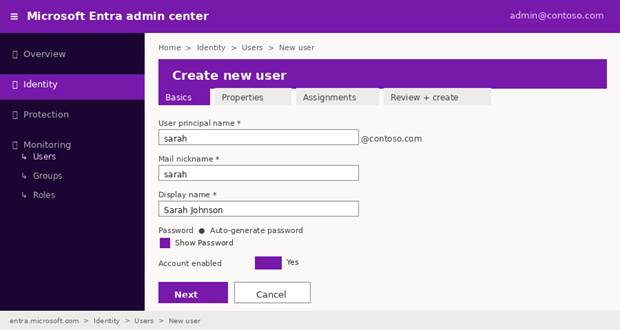
Figure 2: Creating a user via Microsoft Entra ID at entra.microsoft.com → Identity → Users → New user
Method 3: Using PowerShell
PowerShell is ideal for automating the create user Microsoft 365 process at scale. The Microsoft Graph PowerShell module is the current recommended approach.
Using Microsoft Graph PowerShell (Recommended)
| # Step 1: Install the Microsoft Graph module (run once) |
| Install-Module Microsoft.Graph -Scope CurrentUser |
| # Step 2: Connect to Microsoft Graph |
| Connect-MgGraph -Scopes ‘User.ReadWrite.All’ |
| # Step 3: Create the new user |
| New-MgUser -DisplayName ‘Sarah Johnson’ \ |
| -UserPrincipalName ‘sarah@contoso.com’ \ |
| -MailNickname ‘sarah’ \ |
| -AccountEnabled \ |
| -PasswordProfile @{ |
| Password = ‘TempP@ss123!’ |
| ForceChangePasswordNextSignIn = $true |
| } |
Using Legacy MSOnline Module
| Connect-MsolService |
| New-MsolUser -UserPrincipalName ‘sarah@contoso.com’ \ |
| -DisplayName ‘Sarah Johnson’ \ |
| -FirstName ‘Sarah’ -LastName ‘Johnson’ \ |
| -Password ‘TempP@ss123!’ -ForceChangePassword $true |
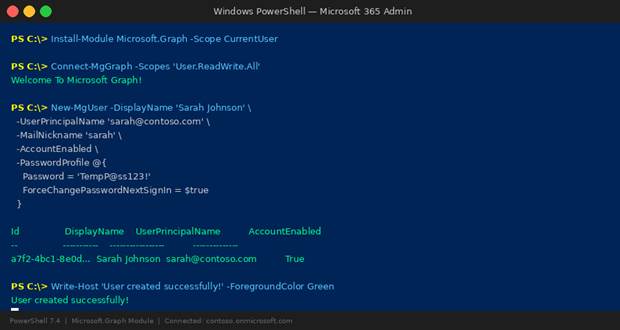
Figure 3: Creating a Microsoft 365 user using PowerShell with the Microsoft Graph module (New-MgUser command)
Bulk User Creation in Microsoft 365
When onboarding many employees at once, Microsoft 365 offers two efficient bulk creation methods.
Option A: CSV Upload in Admin Center
- Go to admin.microsoft.com → Users → Active Users.
- Click Add multiple users and download the CSV template.
- Fill in user details: username, display name, department, etc.
- Upload the completed CSV file and assign licenses in bulk.
- Click Run to create all users simultaneously.
Option B: PowerShell Bulk Script
| # Import users from CSV and create them in bulk |
| $users = Import-Csv -Path ‘C:\users.csv’ |
| foreach ($user in $users) { |
| New-MgUser -DisplayName $user.DisplayName \ |
| -UserPrincipalName $user.UPN \ |
| -MailNickname $user.Alias \ |
| -AccountEnabled \ |
| -PasswordProfile @{ Password = $user.TempPassword; ForceChangePasswordNextSignIn = $true } |
| Write-Host “Created: $($user.DisplayName)” |
| } |
| 💡 When to Use Bulk Creation |
| • Onboarding 10 or more users at the same time |
| • Company mergers or acquisitions with user migration |
| • Seasonal workforce expansion (retail, education) |
| • Migrating from on-premises Active Directory to Microsoft 365 |
Assigning Licenses During User Creation
A Microsoft 365 license is what gives a user access to Outlook, Teams, Word, Excel, and OneDrive. Without a license, the account exists but cannot access any services.
- Microsoft 365 Business Basic: Email, Teams, web apps, 1TB OneDrive
- Microsoft 365 Business Standard: All Basic features plus desktop Office apps
- Microsoft 365 E3: Enterprise features, compliance tools, advanced security
- Microsoft 365 F3: Frontline workers, mobile-first interface
| 📌 Real-World Scenario: Sarah’s First Day |
| Sarah joins as Marketing Manager. The admin creates her account and assigns a Microsoft 365 |
| Business Standard license. By 9:00 AM on her first day, Sarah can open Outlook, join a Teams |
| meeting, and access the company SharePoint. Zero delays. Complete access from day one. |
Common Issues and Troubleshooting
| Issue | Cause | Solution |
| Username already exists | Account with that UPN exists in Entra ID | Use a different username or check deleted users |
| Domain not verified | Custom domain not verified in Microsoft 365 | Verify your domain at admin.microsoft.com → Settings → Domains |
| No licenses available | All purchased licenses are assigned | Purchase additional licenses or reclaim unused ones |
| User not appearing | Sync delay or replication lag | Wait 5–15 minutes or force sync with Azure AD Connect |
| Password policy error | Password doesn’t meet complexity requirements | Use 8+ characters with uppercase, lowercase, number, and symbol |
Best Practices for User Management
1. Use a Consistent Naming Convention
Standardize usernames across the organization (e.g., firstname.lastname@domain.com). This makes it easy to find users and avoids confusion.
2. Apply the Principle of Least Privilege
Only assign the minimum permissions a user needs. Avoid assigning Global Admin roles unless absolutely necessary.
3. Enable Multi-Factor Authentication (MFA)
Require MFA for all new users from day one. Configure this through Conditional Access policies in Microsoft Entra ID.
4. Use User Templates for Faster Onboarding
Create user templates in the Admin Center with predefined settings such as department, location, licenses, and roles to speed up the create user Microsoft 365 process.
5. Automate with PowerShell Scripts
For teams that regularly onboard users, scripting with PowerShell saves hours of manual work and reduces human error.
Conclusion
Creating users in Microsoft 365 is a foundational task for every IT administrator. Whether you use the Admin Center for ease, Entra ID for advanced identity management, or PowerShell for automation and scale, Microsoft 365 gives you flexible options.
By following the steps in this guide, you can confidently perform Office 365 user creation for any scenario — from a single new hire to onboarding hundreds of users at once. Always assign the right license immediately, apply MFA, and use naming conventions to keep your tenant organized.
Frequently Asked Questions (FAQs)
Q: Can I create a user in Microsoft 365 without assigning a license?
A: Yes. The account will be created but the user cannot access any Microsoft 365 services (Outlook, Teams, Office apps) until a license is assigned.
Q: How long does it take for a new user to be active?
A: In most cases, 1 to 5 minutes. In hybrid environments with Azure AD Connect, it may take 15 to 30 minutes to sync fully.
Q: Can I edit user details after the account is created?
A: Yes. Go to Admin Center → Users → Active Users, click on the user’s name, and update display name, department, job title, contact info, and licenses at any time.
Q: What is the difference between Admin Center vs. Entra ID for user creation?
A: Both create the same user account. The Admin Center is simpler for most admins, while Entra ID provides more identity-specific options like group assignments, conditional access, and governance settings.
Q: How do I create a shared mailbox instead of a regular user account?
A: Go to Admin Center → Teams & Groups → Shared Mailboxes → Add a shared mailbox. Shared mailboxes do not require a license.
