

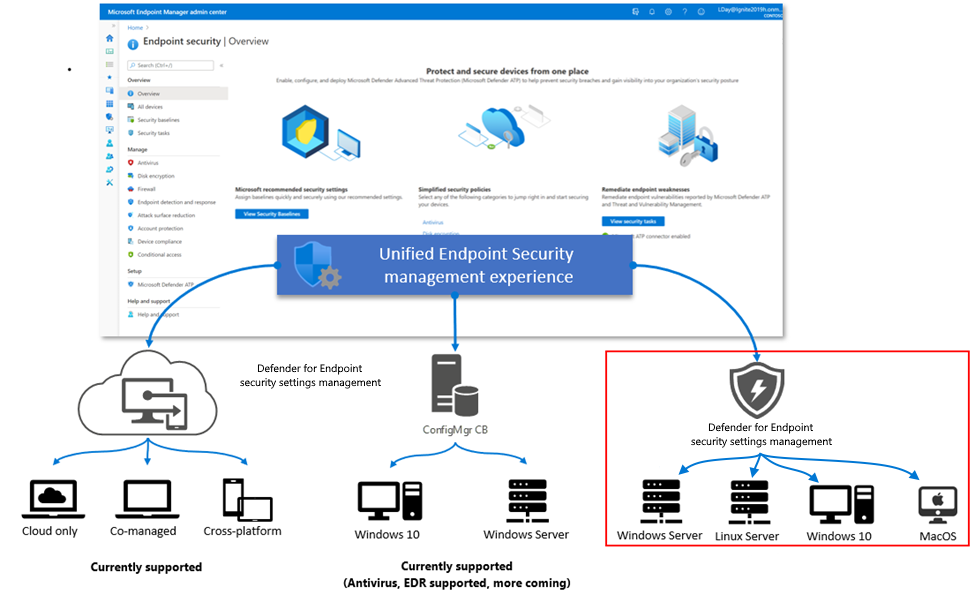
Deploying security tools is one thing, but connecting them to actually respond to threats? That’s where real protection happens.
With Microsoft Intune and Defender for Endpoint working together, you can:
- Detect risky device behavior
- Automatically update device compliance status
- Trigger Conditional Access based on real-time threat data
In this post, we’ll cover how to connect Defender for Endpoint (MDE) to Intune, what policies to configure, and how to turn detection into action.
Integrating MDE with Intune enables a feedback loop between endpoint protection and compliance enforcement.
- Defender detects risky activity (malware, exploits, tampering)
- Intune marks the device as non-compliant
- Conditional Access blocks access to corporate apps
- Admins are alerted and can investigate centrally
This creates a Zero Trust workflow that works in near real-time.
Prerequisites
- Microsoft Defender for Endpoint Plan 1 or Plan 2
- Devices enrolled in Intune (Windows 10/11 or macOS)
- Defender for Endpoint onboarding is configured
- Devices joined to Entra ID (formerly Azure AD)
How to Connect Defender for Endpoint to Intune
Step 1: Enable the connector
- Go to Microsoft Intune Admin Center > Endpoint security > Microsoft Defender for Endpoint
- Set Connect Windows 10.0.15063+ devices to Microsoft Defender Advanced Threat Protection to On.
- Go to Defender Portal > Settings > Endpoints > Advanced Features
- Scroll and make sure the Microsoft Intune connection is enabled


Step 2: Confirm integration in Intune
- Go back to Endpoint security > Microsoft Defender for Endpoint
- Make sure Connection status: Enabled

Create a Compliance Policy Based on Threat Level
You can now use MDE signals in compliance policies.
Steps:
- Go to Intune Admin Center > Devices > Compliance policies
- Create a policy for Windows 10 and later
- Under Microsoft Defender for Endpoint, set:
- Assign to device/user groups
Now, if Defender flags a device as “High” threat, Intune will mark it non-compliant.

Combine with Conditional Access for Real-Time Protection
Once the compliance policy is in place, you can enforce Conditional Access.
Steps:
- Go to Entra Admin Center > Protection > Conditional Access
- Create a policy that:
This ensures only healthy, low-risk devices can access corporate resources.

Monitor and Respond in Microsoft 365 Defender
All Defender detections flow into the Microsoft 365 Defender portal. From there, you can:
- View device risk history
- Run antivirus scans
- Isolate infected endpoints
- Initiate investigations
You now have one platform to detect, respond, and enforce policy, all linked to Intune.
Defender for Endpoint + Intune is a powerful combo for any Zero Trust strategy.
It’s not just antivirus, it’s a real-time security engine that feeds directly into device compliance and Conditional Access decisions.
If you haven’t turned this on yet, it’s one of the highest-impact changes you can make to your M365 security posture.
