

BitLocker encryption is one of the easiest wins in endpoint security, but only if it’s enforced, monitored, and recoverable at scale.
With Microsoft Intune, you can standardize and automate BitLocker configuration across your Windows fleet, ensure recovery keys are backed up securely, and monitor compliance centrally.
In today’s guide, we’ll walk through:
- Why BitLocker management matters
- How to configure BitLocker with Intune
- Where recovery keys are stored and how to retrieve them
- How to monitor compliance and enforce encryption
- Best practices to avoid user disruption
Why Use Intune for BitLocker Management?
Manually configuring BitLocker is risky and inconsistent. With Intune, you can:
- Enforce encryption across all devices
- Set policies for TPM-only, TPM+PIN, or password protection
- Automatically back up recovery keys to Entra ID
- Prevent users from turning off encryption
- Monitor device compliance from a single dashboard
This gives you a scalable and policy-driven approach to endpoint encryption.
Prerequisites
- Windows 10/11 Pro, Enterprise, or Education
- Devices must be Entra-joined or Hybrid-joined
- Intune license with Endpoint Security profile support
How to Configure BitLocker Using Intune
Step 1: Go to Intune Admin Center > Endpoint security > Disk encryption
Step 2: Click + Create policy
- Platform: Windows
- Profile: BitLocker
Step 3: Configure settings, including:
- Encryption method: XTS-AES 256
- Fixed/Removable/OS drives: Set behavior for each
- Startup authentication: TPM only or TPM + PIN
- Recovery key backup: Save to Entra ID automatically
- Silent enablement: Optional, avoids user prompts
- Block standard users from turning off BitLocker
Step 4: Assign the policy to your device groups.

Where Are Recovery Keys Stored?
When configured correctly, Intune automatically backs up the BitLocker recovery key to:
- Entra ID (Azure AD)
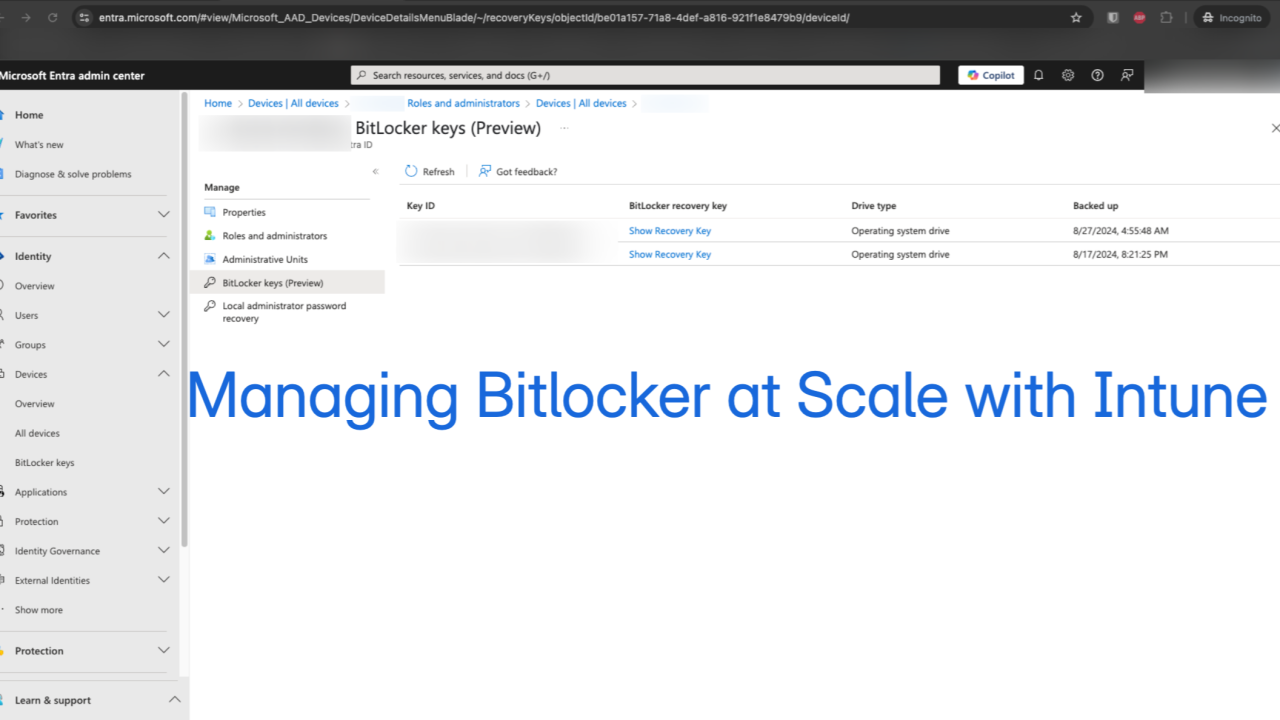
- View it in the device’s profile under Microsoft Entra admin center > Devices > [Device Name] > BitLocker keys

How to Monitor BitLocker Status and Compliance
Option 1: Endpoint Security > Disk Encryption
- Go to Intune Admin Center > Endpoint security > Disk encryption
- This is where you manage and view your BitLocker policy assignments
You can:
- View assigned profiles
- See which groups/devices the policy is targeting
- Edit or troubleshoot policy settings
However, this does not show encryption state per device. If you’re using Compliance Policies, you can enforce BitLocker as a requirement for a device to be marked compliant.

Option 2: Device-Level Check (Per Device)
- Go to Devices > Windows > [Device Name] > Recovery Keys
This is a manual but reliable way to check encryption on a device-by-device basis.

Recommendations
- Use silent encryption only on devices with TPM, otherwise, BitLocker will pause and wait for user interaction
- Exclude VMs or lab devices that don’t support encryption
- BitLocker encryption can take time, schedule policy deployment thoughtfully
- Test backup and key recovery before relying on automation
BitLocker is only effective if it’s consistent, and that’s what Intune delivers.
With just a few policies, you can enforce encryption, collect recovery keys, and ensure compliance at scale, all without relying on local IT interaction.
