

Creating the perfect bar chart in PowerPoint bar chart can be daunting, but with the right steps, you can transform a standard chart into a visually appealing and professional presentation. In this guide, we’ll walk you through the process of revamping your bar chart to make your data stand out and Discover expert tips to elevate your PowerPoint bar chart from ordinary to extraordinary. Impress your audience with visually captivating data visualizations.
Step-by-Step Guide to Enhancing Your Bar Chart
Step 1: Start with the Standard Template
-
- Begin with PowerPoint’s standard bar chart template. This provides a basic structure that we will enhance to make it more professional.
Step 2: Clean Up the Chart
-
- Delete unnecessary elements:
-
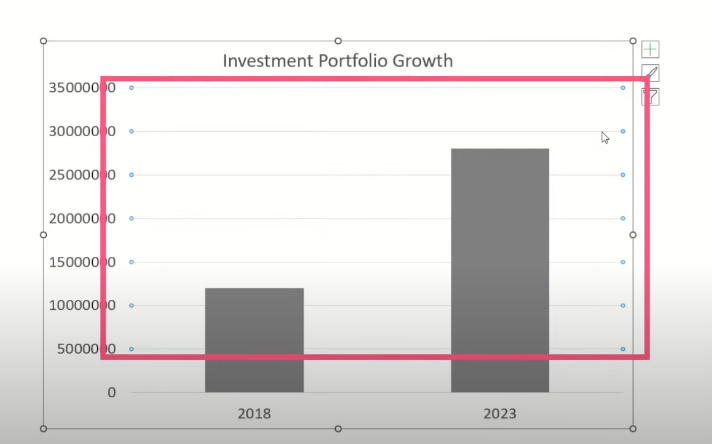
- Remove horizontal grid lines to reduce clutter.
-
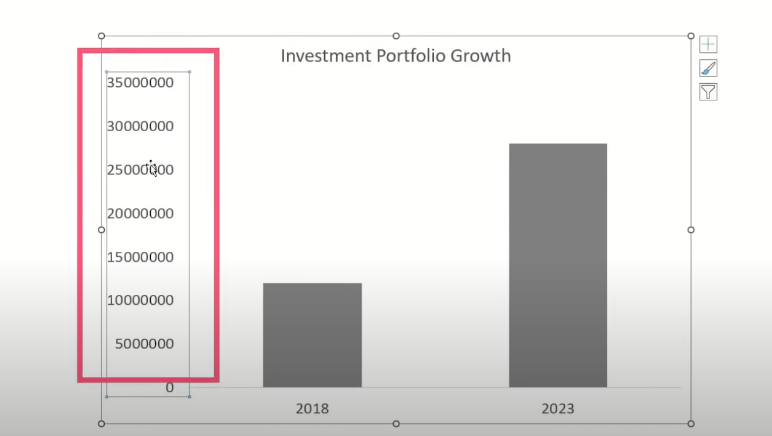
- Delete vertical axis numbers for a cleaner look.
-
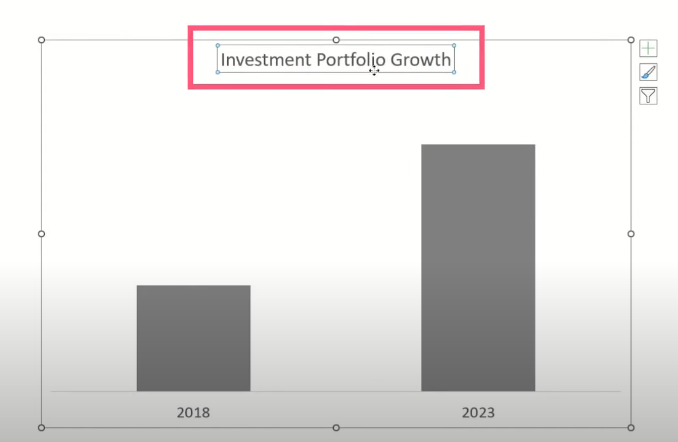
- Get rid of the default chart title to make room for a customized one.
Step 3: Add and Format Data Labels
-
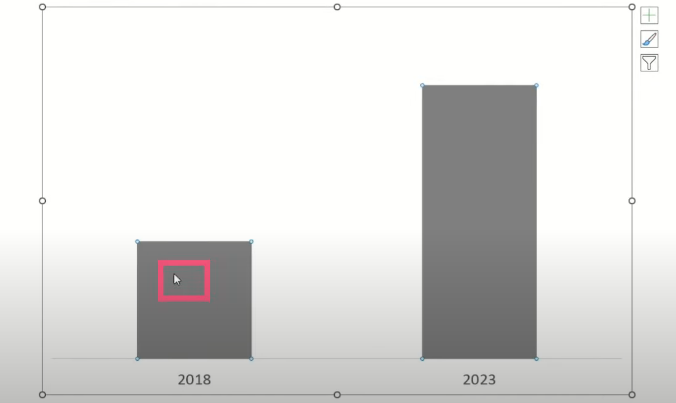
- Click on the bars to select them.
-
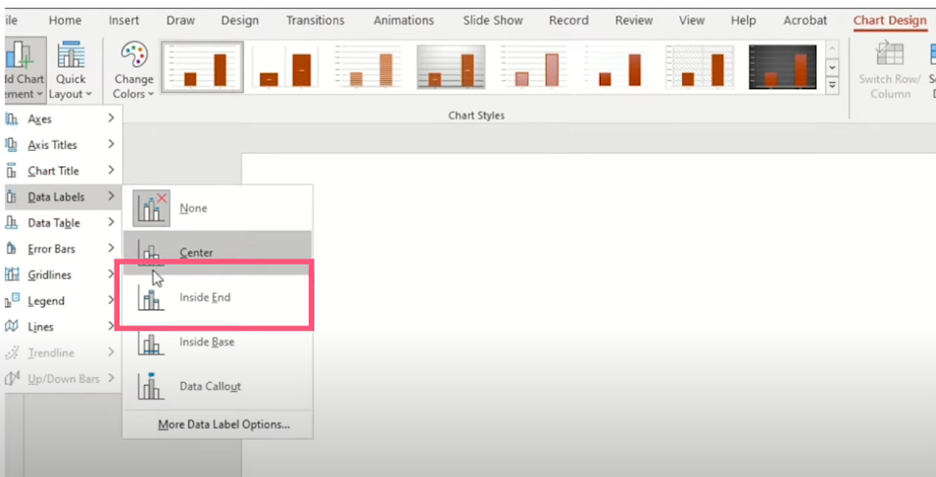
- Navigate to Chart Design > Add Chart Element > Data Labels > Inside End.
-
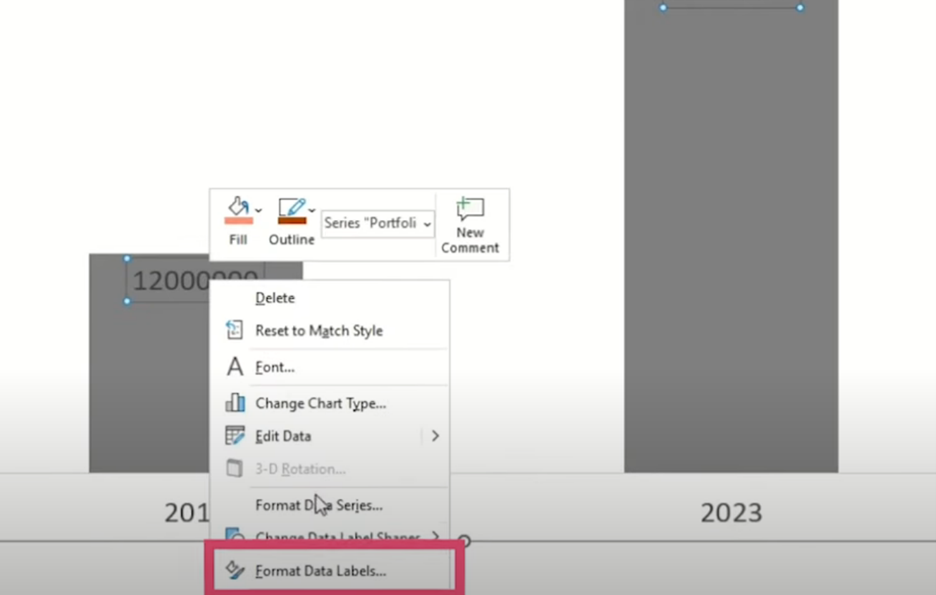
- Right-click on the data labels and choose Format Data Labels.
-
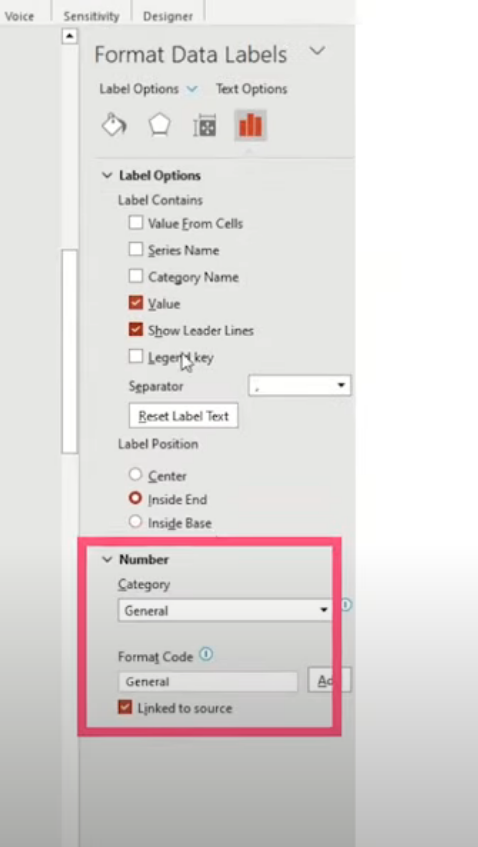
- In the format menu, select Number from the drop-down.
-
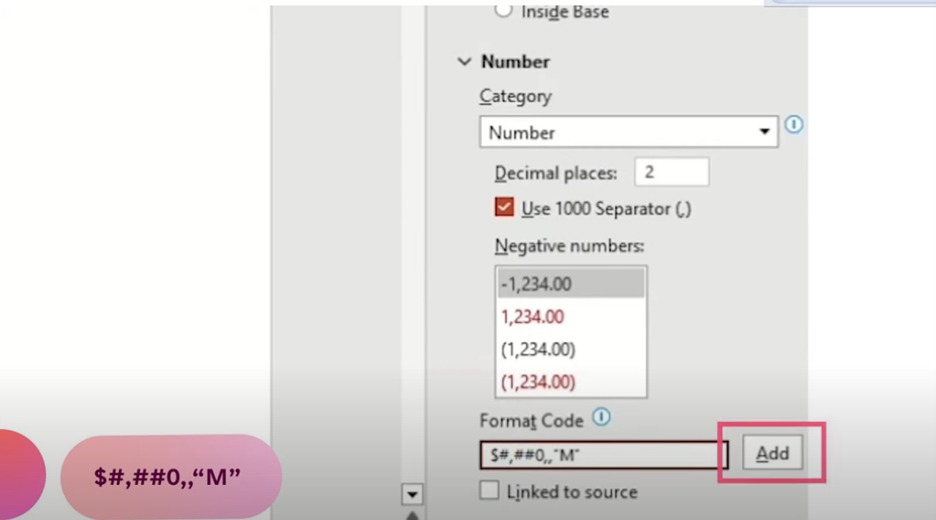
- Add a dollar sign before the number, remove decimal points and zeros, and append “,,”M”” to format the numbers in millions.
Step 4: Customize Fonts and Colors
-
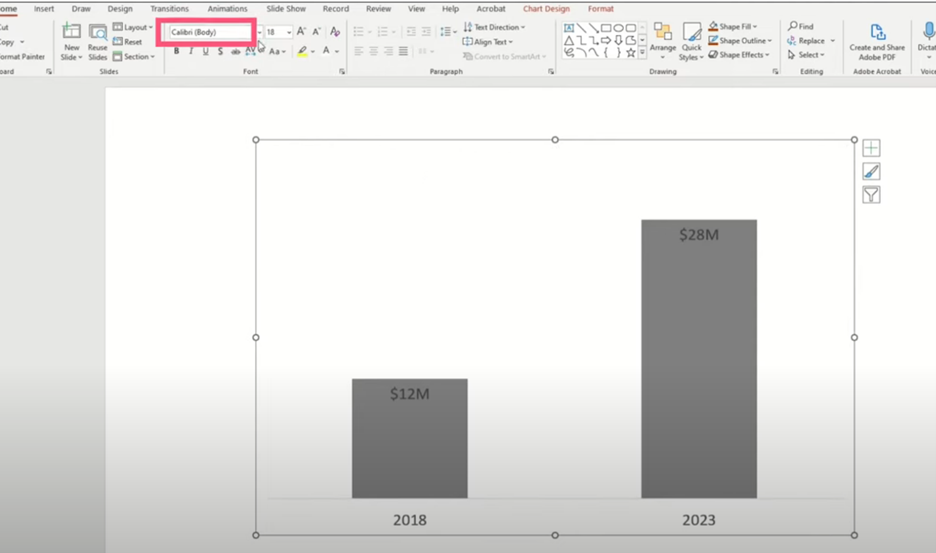
- Change the font of the entire bar chart to ensure consistency.
-
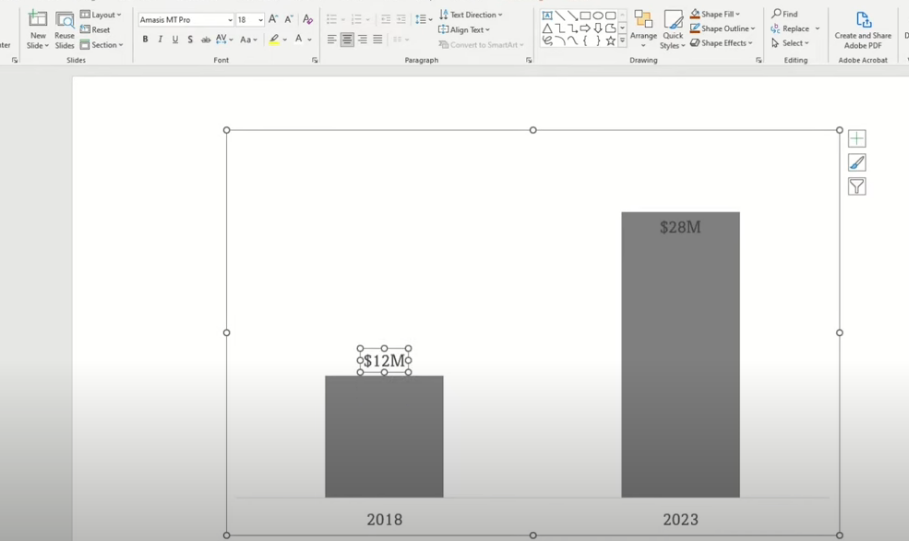
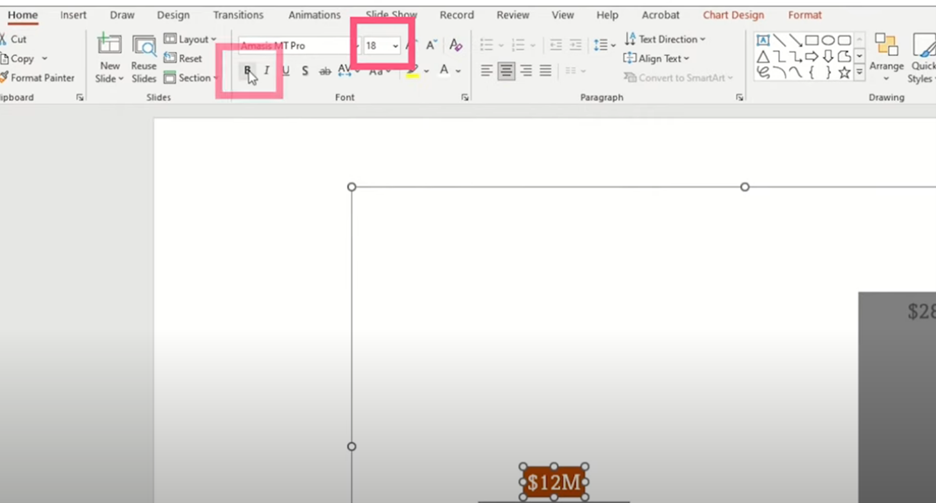
- Move the $12 million data label to the outside top of the bar.
-
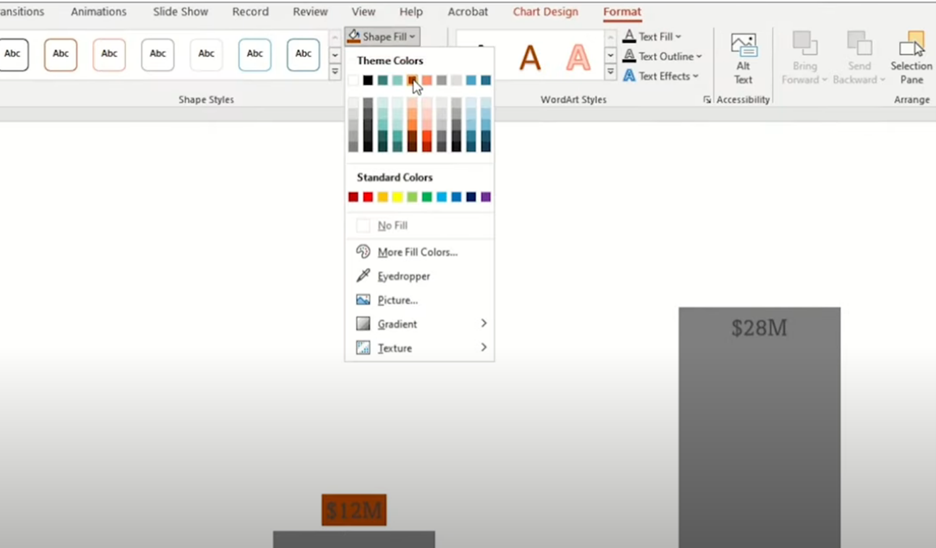
- Select the label, go to Format > Shape Fill, and choose a burnt orange color.
-
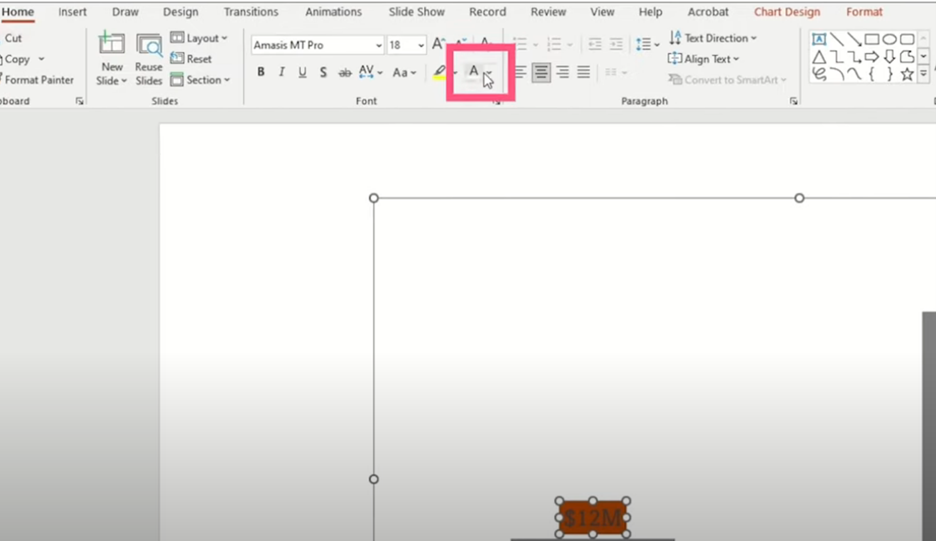
- Change the text color to white, then enlarge and bold the text.
Step 5: Outline the Bars
-
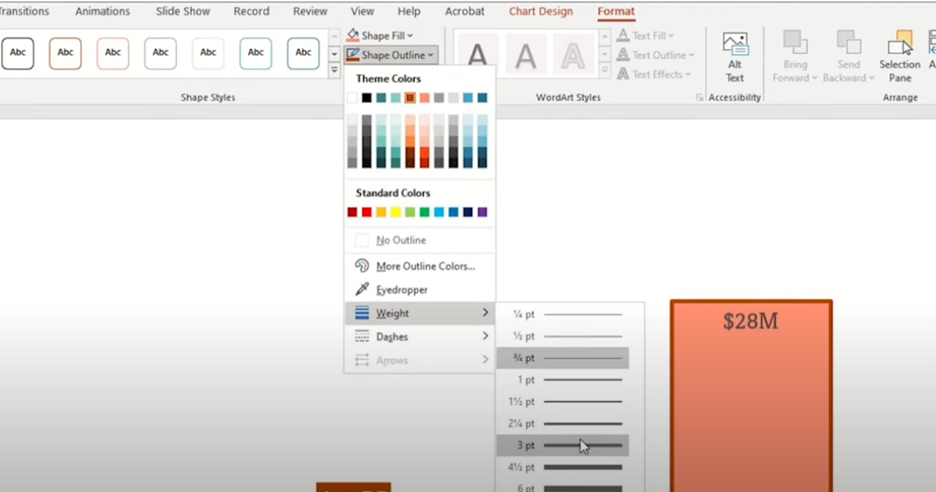
- Customize the bar outlines to add contrast. Select the bar, go to Format > Shape Fill and set the fill color to peach.
-
- Then, set the Shape Outline to burnt orange and adjust the outline weight to 3 points.
Step 6: Customize the $28 Million Bar
-
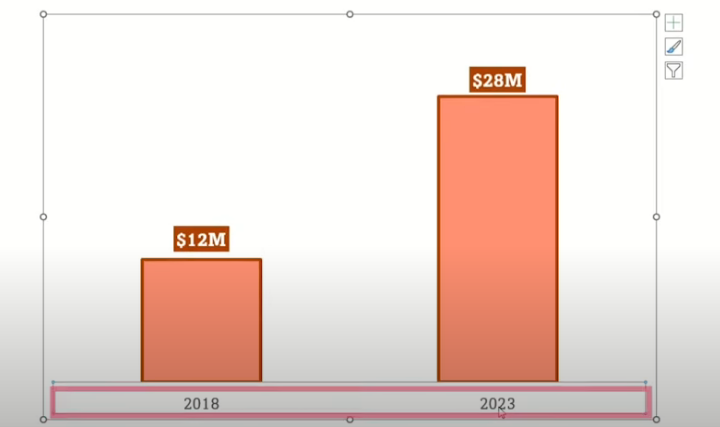
- Apply the same updates to the $28 million bar for consistency.
Step 7: Enhance the Axis
-
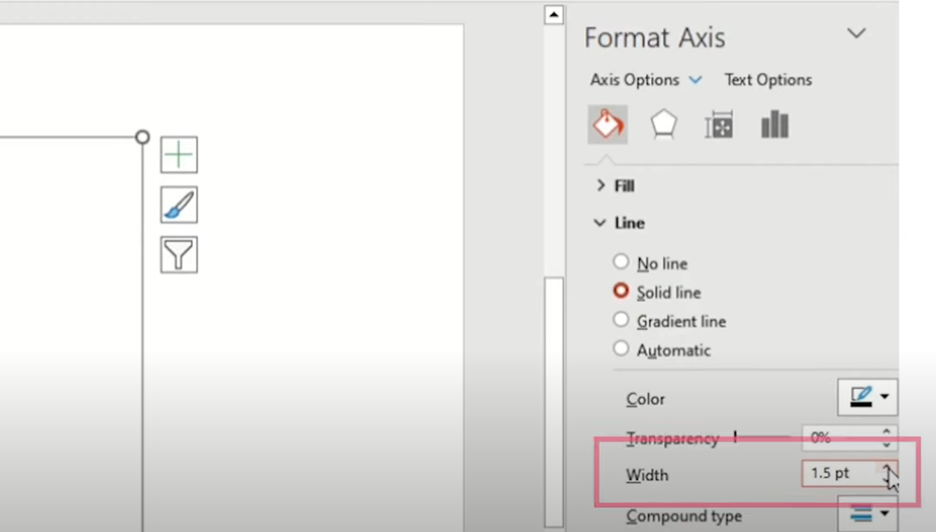
- Double-click on the axis to open the formatting options.
-
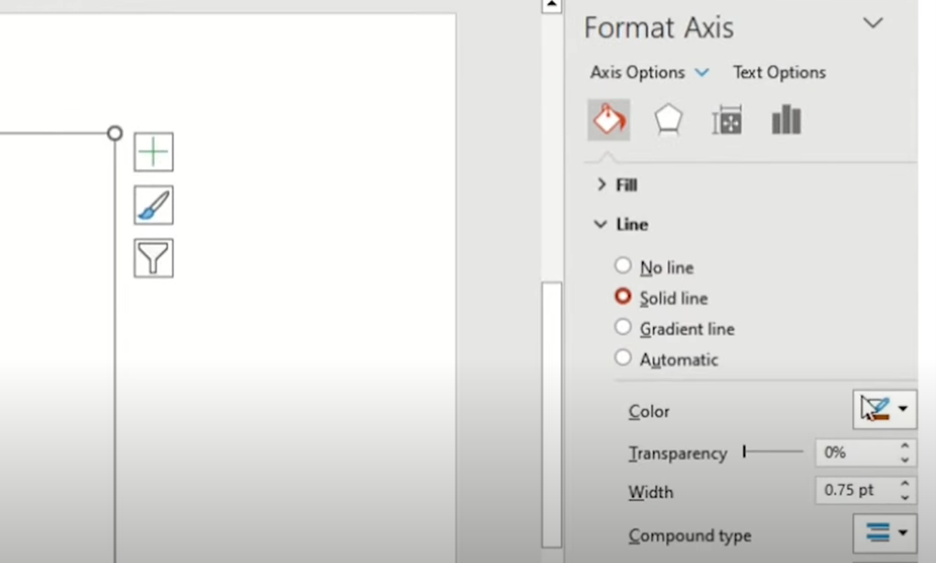
- Under Paint Carton, select Line and choose Solid Line.
-
- Change the line color to black and set the width to 1.5 points.
-
- Increase the horizontal axis font size and change its color to black for better readability.
Step 8: Adjust Bar Width
-
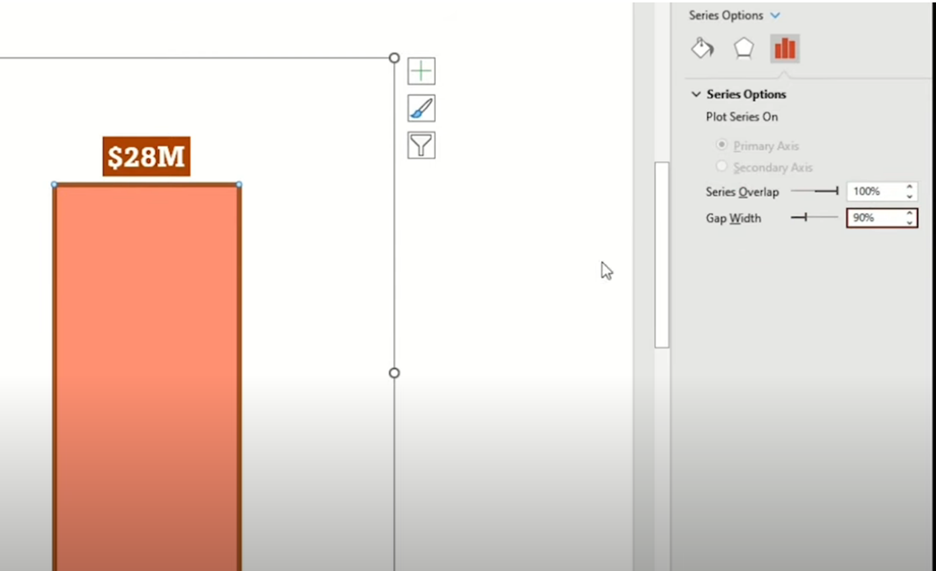
- To make the bars wider, adjust the gap width to 90. This provides a bolder look.
Step 9: Add Dimension with a Table
-
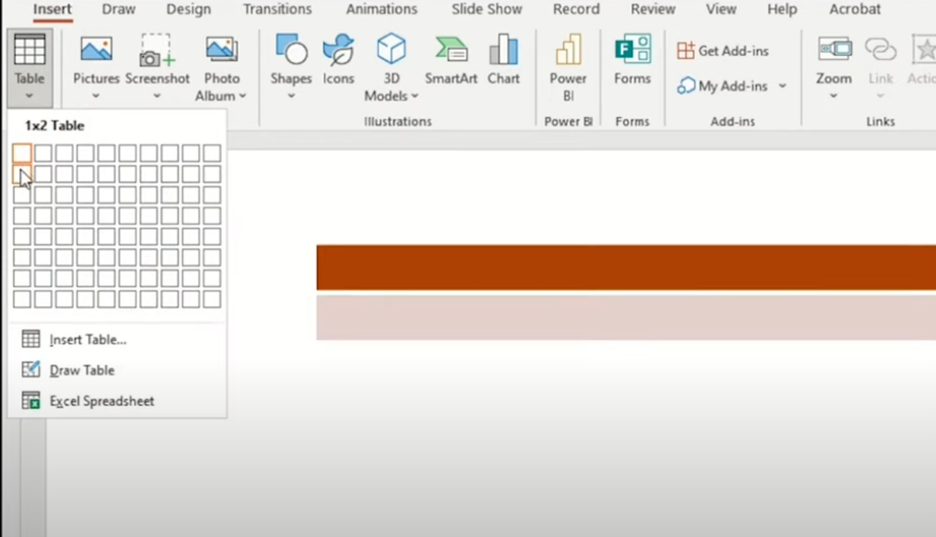
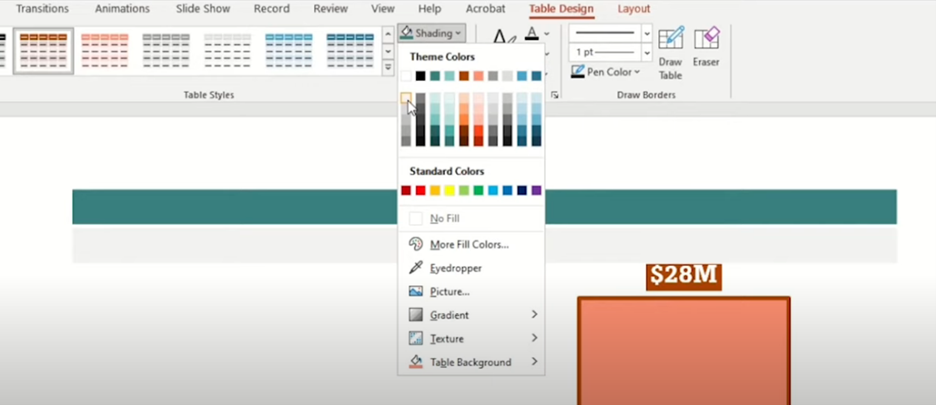
- Insert a one-by-two table to add some dimension behind the bar chart.
-
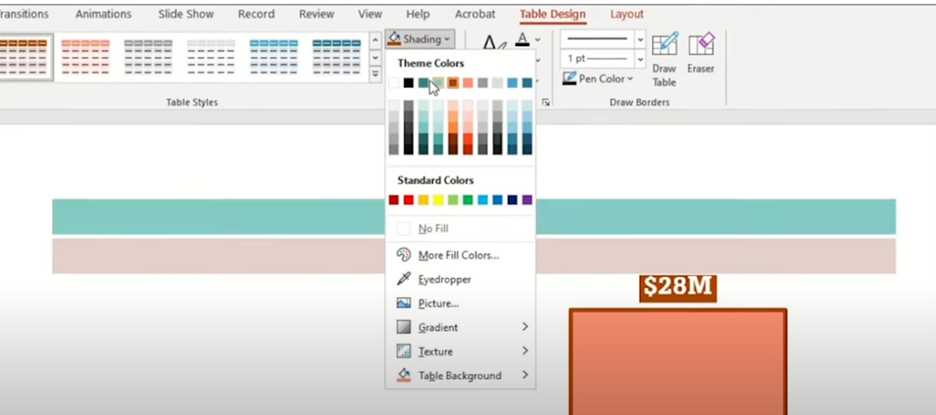
- Change the top box to a dark teal color and the bottom box to light gray.
-
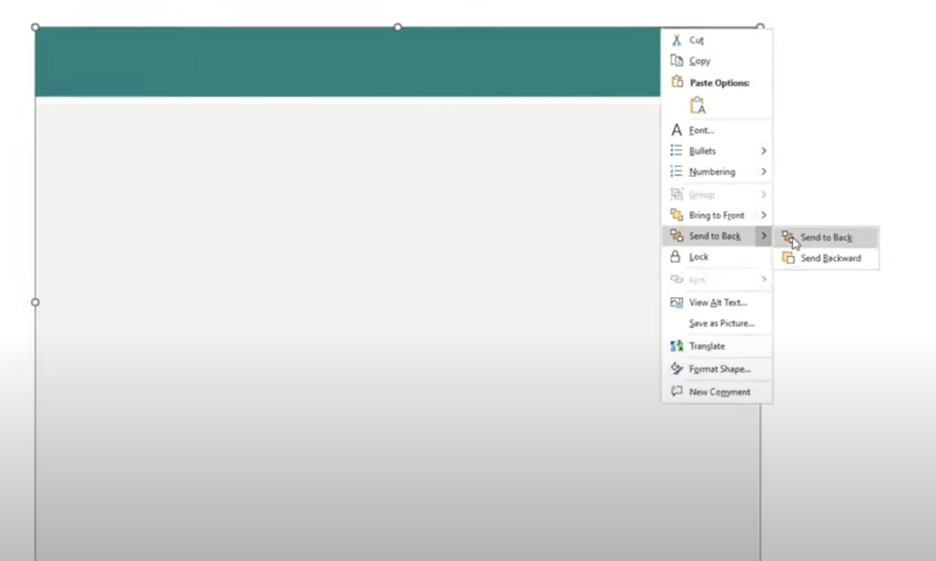
- Adjust the size of the table to fit behind the chart and send it to the back.
Step 10: Insert and Customize an Arrow
-
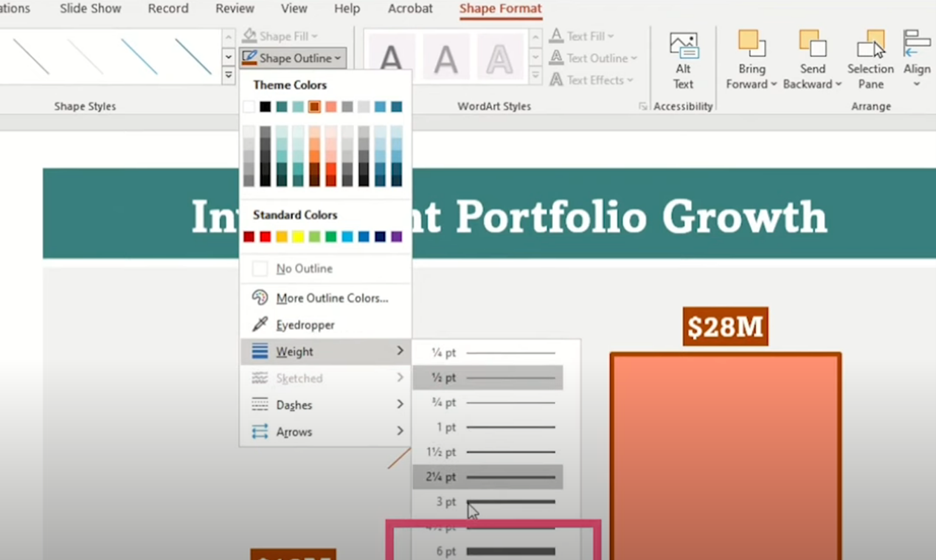
- Go to Insert > Shapes > Arrow.
-
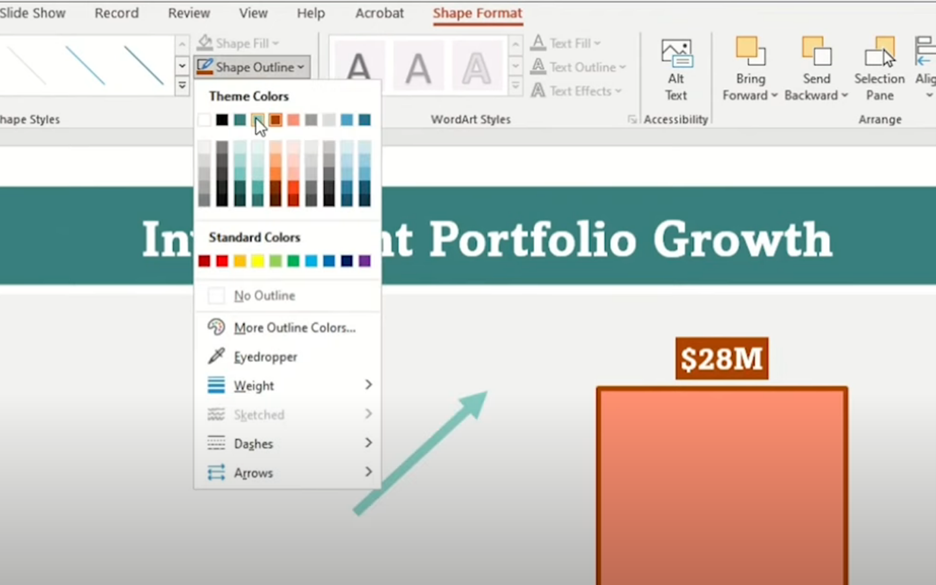
- Under Shape Format, set the arrow’s width to 6 points and change its color to light teal.
Step 11: Add a Highlighting Circle
-
- Insert a circle by going to Insert > Shapes > Circle.
-
- Change the circle color to dark teal and place it appropriately on the chart.
-
- Inside the circle, add the compound annual growth rate (CAGR) metric, which adds a valuable data point.

Conclusion
By following these steps, you can transform a basic PowerPoint bar chart into a polished and professional visual that clearly communicates your data. This revamped bar chart not only looks great but also effectively highlights key metrics, making your presentations more impactful and engaging.
There you have it—a revamped bar chart that showcases your data in style. With these techniques, you can create compelling and professional visuals that impress your audience and clearly convey your message. Happy charting! Discover expert tips to elevate your PowerPoint bar chart from ordinary to extraordinary. Impress your audience with visually captivating data visualizations.
