

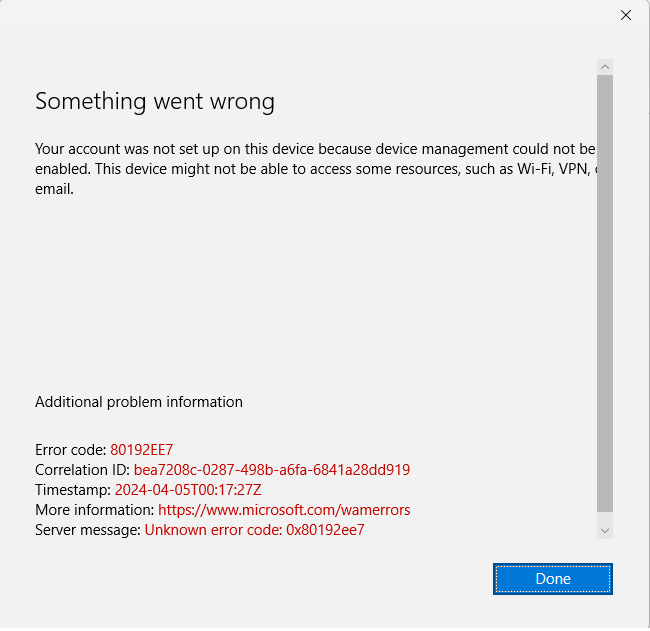
Cause:
Your administrator has accidently deleted the device from Intune MDM registration list.
Occurrence:
When user retries to register device in Intune MDM or Azure AD join (Work account) it rejects due to the previous symlink in other apps in Azure. So user will not be able to add his/her account through add work account or through company portal app.
Resolution:
Login to your Azure portal https://portal.azure.com then go to Mobility (MDM and WIP) then Microsoft Intune.
On MDM User scope section click on restore default MDM URLs then set user scope to None
On Windows Information Protection (WIP) user scope set it to None as well.
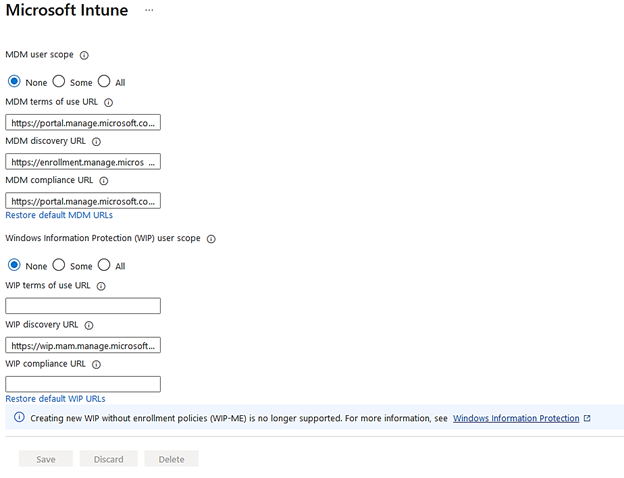
Save the changes.
Now, go to Intune portal intune.microsoft.com go to Devices then Windows and then Windows Enrollment
Click on Windows Hello for Business
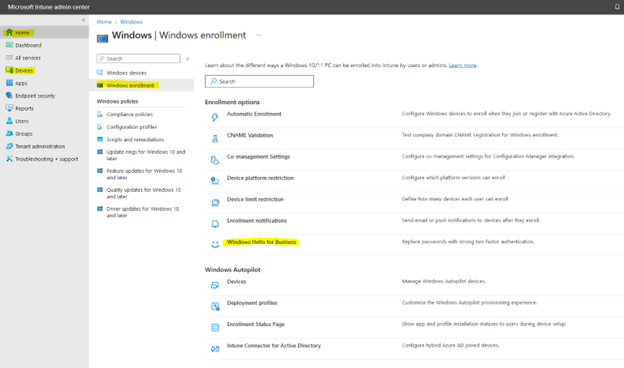
Make sure the Configure Windows Hello for Business is Enabled.
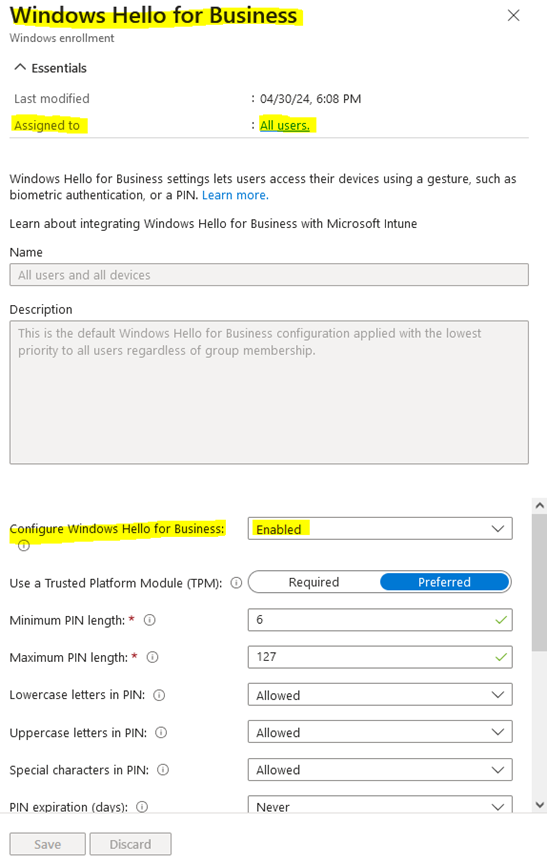
Note: This enables the support for the Windows Hello feature so that user can use their biometric and PIN logins.
Close the Windows Hello for Business and then go to Devices then Windows then Windows Enrollment and then Automatic Enrollment
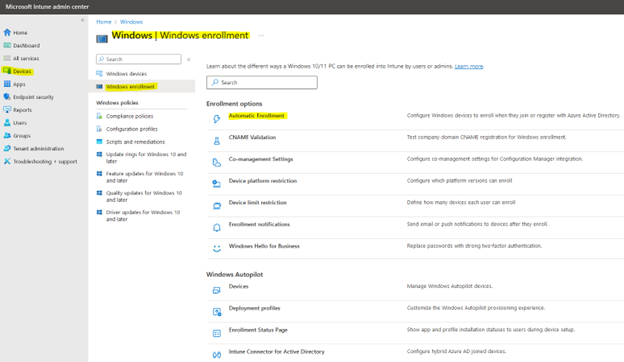
Copy the MDM discovery URL
https://enrollment.manage.microsoft.com/enrollmentserver/discovery.svc

Now, use this URL to join the work account or in company portal to device registration.
Conclusion:
There are 2 different portal that has device registration. First one is Azure portal where users can register device by Azure AD join and second is Intune portal where user can join device by simply logging with their work account and select Allow my organization to manage this device option or by using Company Portal app login with same settings to allow device management. If the user has Office apps license then while logging into those apps also the device management option is provided so make sure to check those as well. and ERROR CODE 80192EE7 SOLUTION
